

我们将构建什么
我们将构建一个暴露两个 tools 的服务器:get_alerts 和 get_forecast。然后把该服务器连接到 MCP host(本例中是 Claude for Desktop):
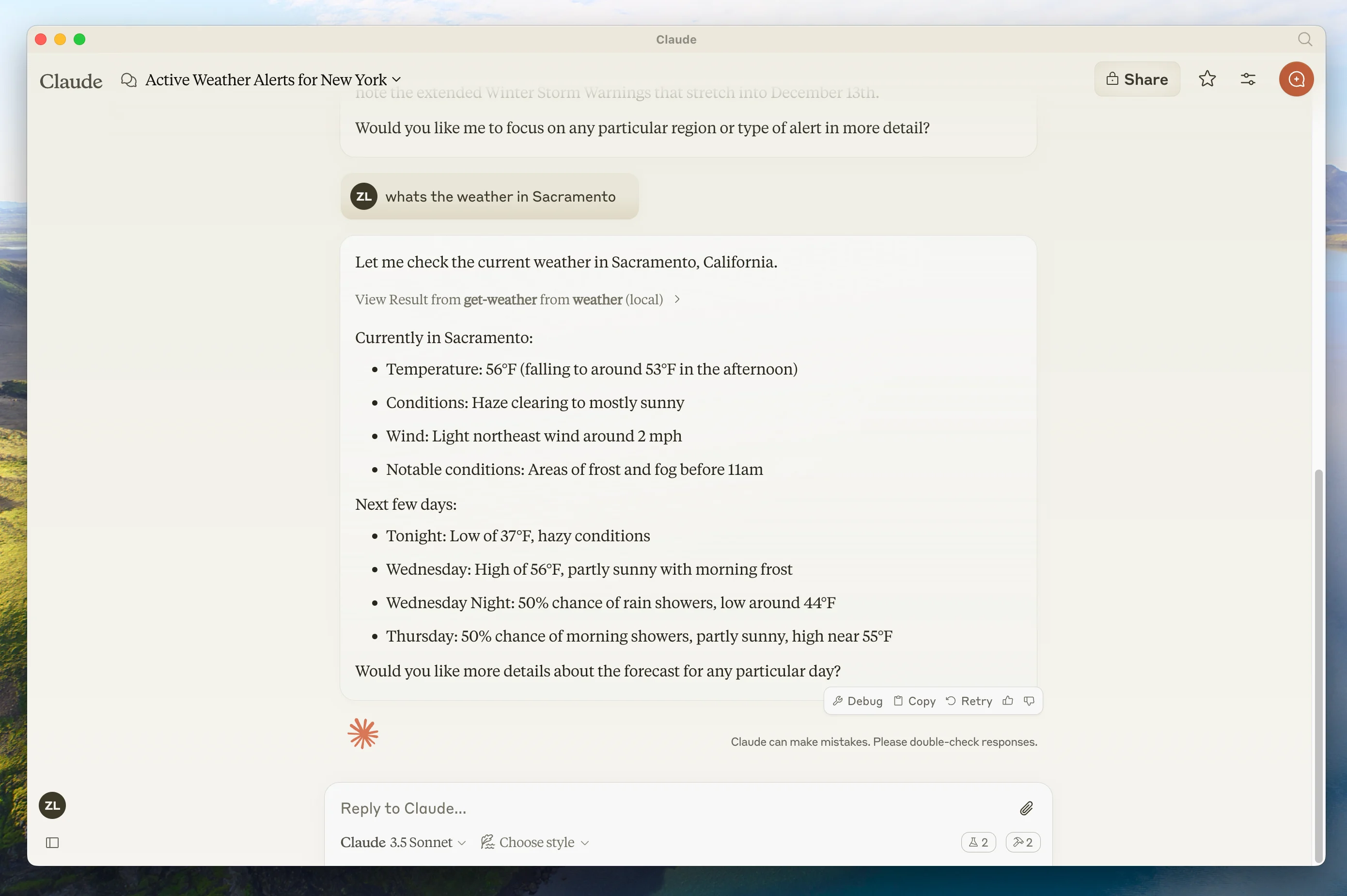
服务器可以连接到任何客户端。为了简化说明,这里选择 Claude for Desktop;你也可以参考构建自己的客户端指南。
MCP 核心概念
MCP 服务器可以提供三类主要能力: 本教程主要关注 tools。- Python
- TypeScript
- Java
- Kotlin
- C#
- Ruby
- Rust
- Go
开始构建天气服务器。这里可以找到本教程将构建内容的完整代码。安装后请重启终端,确保可以识别 现在开始构建服务器。FastMCP 类会使用 Python 类型提示和 docstring 自动生成 tool 定义,使 MCP tools 的创建和维护更简单。服务器已经完成。运行 首先,确保已经安装 Claude for Desktop。你可以在这里安装最新版本。 如果已经安装 Claude for Desktop,请确保它已更新到最新版本。你需要在 Claude for Desktop 中配置想要使用的 MCP 服务器。为此,请用文本编辑器打开 Claude for Desktop 应用配置文件 接着在 这会告诉 Claude for Desktop:
前置知识
本快速开始假设你熟悉:- Python
- LLMs like Claude
MCP 服务器中的日志
实现 MCP 服务器时,请谨慎处理日志:对于基于 STDIO 的服务器: 永远不要写入 stdout。写入 stdout 会破坏 JSON-RPC 消息并导致服务器异常。print() 默认写入 stdout,但配合 file=sys.stderr 可以安全使用。对于基于 HTTP 的服务器: 标准输出日志是可以的,因为它不会干扰 HTTP 响应。最佳实践
- 使用写入 stderr 或文件的日志库。
快速示例
import sys
import logging

# ❌ Bad (STDIO)
print("Processing request")

# ✅ Good (STDIO)
print("Processing request", file=sys.stderr)

# ✅ Good (STDIO)
logging.info("Processing request")
系统要求
- 已安装 Python 3.10 或更高版本。
- 必须使用 Python MCP SDK 1.2.0 或更高版本。
设置环境
首先安装uv,并设置 Python 项目和环境:curl -LsSf https://astral.sh/uv/install.sh | sh
powershell -ExecutionPolicy ByPass -c "irm https://astral.sh/uv/install.ps1 | iex"
uv 命令。现在创建并设置项目:# Create a new directory for our project
uv init weather
cd weather
# Create virtual environment and activate it
uv venv
source .venv/bin/activate
# Install dependencies
uv add "mcp[cli]" httpx
# Create our server file
touch weather.py
# Create a new directory for our project
uv init weather
cd weather

# Create virtual environment and activate it
uv venv
.venv\Scripts\activate

# Install dependencies
uv add mcp[cli] httpx

# Create our server file
new-item weather.py
构建服务器
导入包并设置实例
将以下内容添加到weather.py 顶部:from typing import Any
import httpx
from mcp.server.fastmcp import FastMCP
# Initialize FastMCP server
mcp = FastMCP("weather")
# Constants
NWS_API_BASE = "https://api.weather.gov"
USER_AGENT = "weather-app/1.0"
辅助函数
接下来添加辅助函数,用于查询并格式化 National Weather Service API 的数据:async def make_nws_request(url: str) -> dict[str, Any] | None:
"""Make a request to the NWS API with proper error handling."""
headers = {"User-Agent": USER_AGENT, "Accept": "application/geo+json"}
async with httpx.AsyncClient() as client:
try:
response = await client.get(url, headers=headers, timeout=30.0)
response.raise_for_status()
return response.json()
except Exception:
return None
def format_alert(feature: dict) -> str:
"""Format an alert feature into a readable string."""
props = feature["properties"]
return f"""
Event: {props.get("event", "Unknown")}
Area: {props.get("areaDesc", "Unknown")}
Severity: {props.get("severity", "Unknown")}
Description: {props.get("description", "No description available")}
Instructions: {props.get("instruction", "No specific instructions provided")}
"""
实现工具执行
工具执行处理器负责真正执行每个 tool 的逻辑。添加如下代码:@mcp.tool()
async def get_alerts(state: str) -> str:
"""Get weather alerts for a US state.
Args:
state: Two-letter US state code (e.g. CA, NY)
"""
url = f"{NWS_API_BASE}/alerts/active/area/{state}"
data = await make_nws_request(url)
if not data or "features" not in data:
return "Unable to fetch alerts or no alerts found."
if not data["features"]:
return "No active alerts for this state."
alerts = [format_alert(feature) for feature in data["features"]]
return "\n---\n".join(alerts)
@mcp.tool()
async def get_forecast(latitude: float, longitude: float) -> str:
"""Get weather forecast for a location.
Args:
latitude: Latitude of the location
longitude: Longitude of the location
"""
# First get the forecast grid endpoint
points_url = f"{NWS_API_BASE}/points/{latitude},{longitude}"
points_data = await make_nws_request(points_url)
if not points_data:
return "Unable to fetch forecast data for this location."
# Get the forecast URL from the points response
forecast_url = points_data["properties"]["forecast"]
forecast_data = await make_nws_request(forecast_url)
if not forecast_data:
return "Unable to fetch detailed forecast."
# Format the periods into a readable forecast
periods = forecast_data["properties"]["periods"]
forecasts = []
for period in periods[:5]: # Only show next 5 periods
forecast = f"""
{period["name"]}:
Temperature: {period["temperature"]}°{period["temperatureUnit"]}
Wind: {period["windSpeed"]} {period["windDirection"]}
Forecast: {period["detailedForecast"]}
"""
forecasts.append(forecast)
return "\n---\n".join(forecasts)
运行服务器
最后,初始化并运行服务器:def main():
# Initialize and run the server
mcp.run(transport="stdio")
if __name__ == "__main__":
main()
uv run weather.py 启动 MCP 服务器,它会监听来自 MCP hosts 的消息。现在从现有 MCP host Claude for Desktop 测试服务器。使用 Claude for Desktop 测试服务器
Claude for Desktop 目前尚不支持 Linux。Linux 用户可以继续阅读构建客户端教程,构建一个连接到刚才服务器的 MCP client。
~/Library/Application Support/Claude/claude_desktop_config.json。如果文件不存在,请先创建它。例如,如果已安装 VS Code:code ~/Library/Application\ Support/Claude/claude_desktop_config.json
code $env:AppData\Claude\claude_desktop_config.json
mcpServers 键中添加服务器。只有至少正确配置了一个服务器,MCP UI 元素才会出现在 Claude for Desktop 中。本例中,我们按如下方式添加单个天气服务器:{
"mcpServers": {
"weather": {
"command": "uv",
"args": [
"--directory",
"/ABSOLUTE/PATH/TO/PARENT/FOLDER/weather",
"run",
"weather.py"
]
}
}
}
{
  "mcpServers": {
    "weather": {
      "command": "uv",
      "args": [
        "--directory",
        "C:\\ABSOLUTE\\PATH\\TO\\PARENT\\FOLDER\\weather",
        "run",
        "weather.py"
      ]
    }
  }
}
你可能需要在
command 字段中填入 uv 可执行文件的完整路径。可在 macOS/Linux 上运行 which uv,或在 Windows 上运行 where uv 获取。请确保传入服务器的绝对路径。可在 macOS/Linux 上运行
pwd,或在 Windows Command Prompt 中运行 cd 获取。Windows 上请记得在 JSON 路径中使用双反斜杠(\\)或正斜杠(/)。- 有一个名为
"weather"的 MCP server。 - 通过运行
uv --directory /ABSOLUTE/PATH/TO/PARENT/FOLDER/weather run weather.py启动它。
开始构建天气服务器。这里可以找到本教程将构建内容的完整代码。本教程需要 Node.js 16 或更高版本。现在创建并设置项目:更新 package.json,添加 type: “module” 和 build script:在项目根目录创建 现在开始构建 server。请务必运行 首先,确保已安装 Claude for Desktop。可以在这里安装最新版。如果已经安装 Claude for Desktop,请确保它已更新到最新版本。需要为你想使用的 MCP servers 配置 Claude for Desktop。为此,请用文本编辑器打开 Claude for Desktop App 配置文件 然后在 这会告诉 Claude for Desktop:
前置知识
本快速开始假设你熟悉:- TypeScript
- Claude 等 LLM
MCP 服务器中的日志
实现 MCP servers 时,请谨慎处理日志:对于基于 STDIO 的 servers: 绝不要使用console.log(),因为它默认写入 standard output (stdout)。写入 stdout 会破坏 JSON-RPC 消息并导致 server 失效。对于基于 HTTP 的 servers: standard output 日志可以使用,因为它不会干扰 HTTP responses。最佳实践
- 使用会写入 stderr 的
console.error(),或使用写入 stderr / 文件的日志库。
快速示例
// ❌ Bad (STDIO)
console.log("Server started");

// ✅ Good (STDIO)
console.error("Server started"); // stderr is safe
系统要求
对于 TypeScript,请确保已安装最新版 Node。设置环境
如果尚未安装,请先安装 Node.js 和 npm。可以从 nodejs.org 下载。 验证 Node.js 安装:node --version
npm --version
# Create a new directory for our project
mkdir weather
cd weather

# Initialize a new npm project
npm init -y

# Install dependencies
npm install @modelcontextprotocol/sdk zod@3
npm install -D @types/node typescript

# Create our files
mkdir src
touch src/index.ts
# Create a new directory for our project
md weather
cd weather

# Initialize a new npm project
npm init -y

# Install dependencies
npm install @modelcontextprotocol/sdk zod@3
npm install -D @types/node typescript

# Create our files
md src
new-item src\index.ts
package.json
{
  "type": "module",
  "bin": {
    "weather": "./build/index.js"
  },
  "scripts": {
    "build": "tsc && chmod 755 build/index.js"
  },
  "files": ["build"]
}
tsconfig.json:tsconfig.json
{
  "compilerOptions": {
    "target": "ES2022",
    "module": "Node16",
    "moduleResolution": "Node16",
    "outDir": "./build",
    "rootDir": "./src",
    "strict": true,
    "esModuleInterop": true,
    "skipLibCheck": true,
    "forceConsistentCasingInFileNames": true
  },
  "include": ["src/**/*"],
  "exclude": ["node_modules"]
}
构建服务器
导入包并设置实例
将以下内容添加到src/index.ts 顶部:import { McpServer } from "@modelcontextprotocol/sdk/server/mcp.js";
import { StdioServerTransport } from "@modelcontextprotocol/sdk/server/stdio.js";
import { z } from "zod";
const NWS_API_BASE = "https://api.weather.gov";
const USER_AGENT = "weather-app/1.0";
// Create server instance
const server = new McpServer({
name: "weather",
version: "1.0.0",
});
辅助函数
接下来添加 helper functions,用于查询并格式化 National Weather Service API 的数据:// Helper function for making NWS API requests
async function makeNWSRequest<T>(url: string): Promise<T | null> {
const headers = {
"User-Agent": USER_AGENT,
Accept: "application/geo+json",
};
try {
const response = await fetch(url, { headers });
if (!response.ok) {
throw new Error(`HTTP error! status: ${response.status}`);
}
return (await response.json()) as T;
} catch (error) {
console.error("Error making NWS request:", error);
return null;
}
}
interface AlertFeature {
properties: {
event?: string;
areaDesc?: string;
severity?: string;
status?: string;
headline?: string;
};
}
// Format alert data
function formatAlert(feature: AlertFeature): string {
const props = feature.properties;
return [
`Event: ${props.event || "Unknown"}`,
`Area: ${props.areaDesc || "Unknown"}`,
`Severity: ${props.severity || "Unknown"}`,
`Status: ${props.status || "Unknown"}`,
`Headline: ${props.headline || "No headline"}`,
"---",
].join("\n");
}
interface ForecastPeriod {
name?: string;
temperature?: number;
temperatureUnit?: string;
windSpeed?: string;
windDirection?: string;
shortForecast?: string;
}
interface AlertsResponse {
features: AlertFeature[];
}
interface PointsResponse {
properties: {
forecast?: string;
};
}
interface ForecastResponse {
properties: {
periods: ForecastPeriod[];
};
}
实现工具执行
tool execution handler 负责实际执行每个 tool 的逻辑。添加如下内容:// Register weather tools
server.registerTool(
"get_alerts",
{
description: "Get weather alerts for a state",
inputSchema: {
state: z
.string()
.length(2)
.describe("Two-letter state code (e.g. CA, NY)"),
},
},
async ({ state }) => {
const stateCode = state.toUpperCase();
const alertsUrl = `${NWS_API_BASE}/alerts?area=${stateCode}`;
const alertsData = await makeNWSRequest<AlertsResponse>(alertsUrl);
if (!alertsData) {
return {
content: [
{
type: "text",
text: "Failed to retrieve alerts data",
},
],
};
}
const features = alertsData.features || [];
if (!features.length) {
return {
content: [
{
type: "text",
text: `No active alerts for ${stateCode}`,
},
],
};
}
const formattedAlerts = features.map(formatAlert);
const alertsText = `Active alerts for ${stateCode}:\n\n${formattedAlerts.join("\n")}`;
return {
content: [
{
type: "text",
text: alertsText,
},
],
};
},
);
server.registerTool(
"get_forecast",
{
description: "Get weather forecast for a location",
inputSchema: {
latitude: z
.number()
.min(-90)
.max(90)
.describe("Latitude of the location"),
longitude: z
.number()
.min(-180)
.max(180)
.describe("Longitude of the location"),
},
},
async ({ latitude, longitude }) => {
// Get grid point data
const pointsUrl = `${NWS_API_BASE}/points/${latitude.toFixed(4)},${longitude.toFixed(4)}`;
const pointsData = await makeNWSRequest<PointsResponse>(pointsUrl);
if (!pointsData) {
return {
content: [
{
type: "text",
text: `Failed to retrieve grid point data for coordinates: ${latitude}, ${longitude}. This location may not be supported by the NWS API (only US locations are supported).`,
},
],
};
}
const forecastUrl = pointsData.properties?.forecast;
if (!forecastUrl) {
return {
content: [
{
type: "text",
text: "Failed to get forecast URL from grid point data",
},
],
};
}
// Get forecast data
const forecastData = await makeNWSRequest<ForecastResponse>(forecastUrl);
if (!forecastData) {
return {
content: [
{
type: "text",
text: "Failed to retrieve forecast data",
},
],
};
}
const periods = forecastData.properties?.periods || [];
if (periods.length === 0) {
return {
content: [
{
type: "text",
text: "No forecast periods available",
},
],
};
}
// Format forecast periods
const formattedForecast = periods.map((period: ForecastPeriod) =>
[
`${period.name || "Unknown"}:`,
`Temperature: ${period.temperature || "Unknown"}°${period.temperatureUnit || "F"}`,
`Wind: ${period.windSpeed || "Unknown"} ${period.windDirection || ""}`,
`${period.shortForecast || "No forecast available"}`,
"---",
].join("\n"),
);
const forecastText = `Forecast for ${latitude}, ${longitude}:\n\n${formattedForecast.join("\n")}`;
return {
content: [
{
type: "text",
text: forecastText,
},
],
};
},
);
运行服务器
最后,实现用于运行 server 的 main 函数:async function main() {
const transport = new StdioServerTransport();
await server.connect(transport);
console.error("Weather MCP Server running on stdio");
}
main().catch((error) => {
console.error("Fatal error in main():", error);
process.exit(1);
});
npm run build 构建 server。这是让 server 能够连接的重要步骤。现在从已有 MCP host Claude for Desktop 测试 server。使用 Claude for Desktop 测试服务器
Claude for Desktop 尚不支持 Linux。Linux 用户可以继续阅读构建 client教程,构建一个连接刚才 server 的 MCP client。
~/Library/Application Support/Claude/claude_desktop_config.json。如果文件不存在,请创建它。例如,如果你安装了 VS Code:code ~/Library/Application\ Support/Claude/claude_desktop_config.json
code $env:AppData\Claude\claude_desktop_config.json
mcpServers key 中添加 servers。只有至少正确配置了一个 server,MCP UI 元素才会出现在 Claude for Desktop 中。在本例中,我们按如下方式添加单个 weather server:{
"mcpServers": {
"weather": {
"command": "node",
"args": ["/ABSOLUTE/PATH/TO/PARENT/FOLDER/weather/build/index.js"]
}
}
}
{
  "mcpServers": {
    "weather": {
      "command": "node",
      "args": ["C:\\PATH\\TO\\PARENT\\FOLDER\\weather\\build\\index.js"]
    }
  }
}
- 有一个名为 “weather” 的 MCP server
- 通过运行
node /ABSOLUTE/PATH/TO/PARENT/FOLDER/weather/build/index.js启动它
这是一个基于 Spring AI MCP auto-configuration 和 boot starters 的 quickstart demo。
如需了解如何手动创建同步和异步 MCP Servers,请参考 Java SDK Server 文档。
MCP 服务器中的日志
实现 MCP servers 时,请谨慎处理日志:对于基于 STDIO 的 servers: 绝不要使用System.out.println() 或 System.out.print(),因为它们会写入 standard output (stdout)。写入 stdout 会破坏 JSON-RPC 消息并导致 server 失效。对于基于 HTTP 的 servers: standard output 日志可以使用,因为它不会干扰 HTTP responses。最佳实践
- 使用写入 stderr 或文件的日志库。
- 确保任何已配置日志库都不会写入 stdout。
系统要求
- 已安装 Java 17 或更高版本。
- Spring Boot 3.3.x or higher
设置环境
使用 Spring Initializer 引导项目。需要添加以下依赖:<dependencies>
<dependency>
<groupId>org.springframework.ai</groupId>
<artifactId>spring-ai-starter-mcp-server</artifactId>
</dependency>
<dependency>
<groupId>org.springframework</groupId>
<artifactId>spring-web</artifactId>
</dependency>
</dependencies>
dependencies {
  implementation platform("org.springframework.ai:spring-ai-starter-mcp-server")
  implementation platform("org.springframework:spring-web")
}
spring.main.bannerMode=off
logging.pattern.console=
logging:
  pattern:
    console:
spring:
  main:
    banner-mode: off
构建服务器
天气服务
实现一个 WeatherService.java,使用 REST client 查询 National Weather Service API 的数据:@Service
public class WeatherService {
private final RestClient restClient;
public WeatherService() {
this.restClient = RestClient.builder()
.baseUrl("https://api.weather.gov")
.defaultHeader("Accept", "application/geo+json")
.defaultHeader("User-Agent", "WeatherApiClient/1.0 (your@email.com)")
.build();
}
@Tool(description = "Get weather forecast for a specific latitude/longitude")
public String getWeatherForecastByLocation(
double latitude, // Latitude coordinate
double longitude // Longitude coordinate
) {
// Returns detailed forecast including:
// - Temperature and unit
// - Wind speed and direction
// - Detailed forecast description
}
@Tool(description = "Get weather alerts for a US state")
public String getAlerts(
@ToolParam(description = "Two-letter US state code (e.g. CA, NY)") String state
) {
// Returns active alerts including:
// - Event type
// - Affected area
// - Severity
// - Description
// - Safety instructions
}
// ......
}
@Service annotation 会在应用上下文中自动注册该 service。
Spring AI @Tool annotation 让创建和维护 MCP tools 更简单。auto-configuration 会自动将这些 tools 注册到 MCP server。创建 Boot 应用
@SpringBootApplication
public class McpServerApplication {

	public static void main(String[] args) {
		SpringApplication.run(McpServerApplication.class, args);
	}

	@Bean
	public ToolCallbackProvider weatherTools(WeatherService weatherService) {
		return  MethodToolCallbackProvider.builder().toolObjects(weatherService).build();
	}
}
MethodToolCallbackProvider utils 将 @Tools 转换为 MCP server 使用的可执行 callbacks。运行服务器
最后,构建 server:./mvnw clean install
target 文件夹中生成 mcp-weather-stdio-server-0.0.1-SNAPSHOT.jar 文件。现在从已有 MCP host Claude for Desktop 测试 server。使用 Claude for Desktop 测试服务器
Claude for Desktop 尚不支持 Linux。
~/Library/Application Support/Claude/claude_desktop_config.json。
如果文件不存在,请创建它。例如,如果你安装了 VS Code:code ~/Library/Application\ Support/Claude/claude_desktop_config.json
code $env:AppData\Claude\claude_desktop_config.json
mcpServers key 中添加 servers。
只有至少正确配置了一个 server,MCP UI 元素才会出现在 Claude for Desktop 中。在本例中,我们按如下方式添加单个 weather server:{
"mcpServers": {
"spring-ai-mcp-weather": {
"command": "java",
"args": [
"-Dspring.ai.mcp.server.stdio=true",
"-jar",
"/ABSOLUTE/PATH/TO/PARENT/FOLDER/mcp-weather-stdio-server-0.0.1-SNAPSHOT.jar"
]
}
}
}
{
  "mcpServers": {
    "spring-ai-mcp-weather": {
      "command": "java",
      "args": [
        "-Dspring.ai.mcp.server.transport=STDIO",
        "-jar",
        "C:\\ABSOLUTE\\PATH\\TO\\PARENT\\FOLDER\\weather\\mcp-weather-stdio-server-0.0.1-SNAPSHOT.jar"
      ]
    }
  }
}
请确保传入 server 的绝对路径。
- 有一个名为 “my-weather-server” 的 MCP server
- 通过运行
java -jar /ABSOLUTE/PATH/TO/PARENT/FOLDER/mcp-weather-stdio-server-0.0.1-SNAPSHOT.jar启动它
使用 Java 客户端测试服务器
手动创建 MCP 客户端
使用McpClient 连接到 server:var stdioParams = ServerParameters.builder("java")
.args("-jar", "/ABSOLUTE/PATH/TO/PARENT/FOLDER/mcp-weather-stdio-server-0.0.1-SNAPSHOT.jar")
.build();
var stdioTransport = new StdioClientTransport(stdioParams);
var mcpClient = McpClient.sync(stdioTransport).build();
mcpClient.initialize();
ListToolsResult toolsList = mcpClient.listTools();
CallToolResult weather = mcpClient.callTool(
new CallToolRequest("getWeatherForecastByLocation",
Map.of("latitude", "47.6062", "longitude", "-122.3321")));
CallToolResult alert = mcpClient.callTool(
new CallToolRequest("getAlerts", Map.of("state", "NY")));
mcpClient.closeGracefully();
使用 MCP Client Boot Starter
使用spring-ai-starter-mcp-client 依赖创建新的 boot starter 应用:<dependency>
<groupId>org.springframework.ai</groupId>
<artifactId>spring-ai-starter-mcp-client</artifactId>
</dependency>
spring.ai.mcp.client.stdio.servers-configuration 属性指向你的 claude_desktop_config.json。
可以复用现有 Anthropic Desktop 配置:spring.ai.mcp.client.stdio.servers-configuration=file:PATH/TO/claude_desktop_config.json
更多 Java MCP 服务器示例
starter-webflux-server 演示了如何使用 SSE transport 创建 MCP server。 它展示了如何利用 Spring Boot 的 auto-configuration 能力定义并注册 MCP Tools、Resources 和 Prompts。开始构建 weather server。本教程将构建内容的完整代码见这里。现在创建并设置项目:运行 验证所有内容已正确设置:现在开始构建 server。开发期间可以直接运行 server:生产使用时,构建 shadow JAR:现在从已有 MCP host Claude for Desktop 测试 server。首先,确保已安装 Claude for Desktop。可以在这里安装最新版。如果已经安装 Claude for Desktop,请确保它已更新到最新版本。需要为你想使用的 MCP servers 配置 Claude for Desktop。
为此,请用文本编辑器打开 Claude for Desktop App 配置文件 然后在 这会告诉 Claude for Desktop:
前置知识
本快速开始假设你熟悉:- Kotlin
- Claude 等 LLM
MCP 服务器中的日志
实现 MCP servers 时,请谨慎处理日志:对于基于 STDIO 的 servers: 绝不要使用println(),因为它默认写入 standard output (stdout)。写入 stdout 会破坏 JSON-RPC 消息并导致 server 失效。对于基于 HTTP 的 servers: standard output 日志可以使用,因为它不会干扰 HTTP responses。最佳实践
- 使用写入 stderr 或文件的日志库。
系统要求
- 已安装 JDK 11 或更高版本。
设置环境
如果尚未安装,请先安装java 和 gradle。
你可以从 official Oracle JDK website 下载 java。
验证 java 安装:java --version
# Create a new directory for our project
mkdir weather
cd weather

# Initialize a new kotlin project
gradle init
# Create a new directory for our project
md weather
cd weather

# Initialize a new kotlin project
gradle init
gradle init 后,选择 Application 作为项目类型,选择 Kotlin 作为编程语言。或者,也可以使用 IntelliJ IDEA project wizard 创建 Kotlin 应用。创建项目后,用以下内容替换 build.gradle.kts:build.gradle.kts
// Check latest versions at https://github.com/modelcontextprotocol/kotlin-sdk/releases
val mcpVersion = "0.9.0"
val ktorVersion = "3.2.3"
val slf4jVersion = "2.0.17"

plugins {
    kotlin("jvm") version "2.3.20"
    kotlin("plugin.serialization") version "2.3.20"
    id("com.gradleup.shadow") version "8.3.9"
    application
}

application {
    mainClass.set("MainKt")
}

dependencies {
    implementation("io.modelcontextprotocol:kotlin-sdk:$mcpVersion")
    implementation("io.ktor:ktor-client-content-negotiation:$ktorVersion")
    implementation("io.ktor:ktor-serialization-kotlinx-json:$ktorVersion")
    implementation("io.ktor:ktor-client-cio:$ktorVersion")
    implementation("org.slf4j:slf4j-simple:$slf4jVersion")
}
./gradlew build
构建服务器
设置实例
添加 server 初始化函数:fun runMcpServer() {
val server = Server(
Implementation(
name = "weather",
version = "1.0.0",
),
ServerOptions(
capabilities = ServerCapabilities(tools = ServerCapabilities.Tools(listChanged = true)),
),
)
// register tools on server here
val transport = StdioServerTransport(
System.`in`.asInput(),
System.out.asSink().buffered(),
)
runBlocking {
val session = server.createSession(transport)
val done = Job()
session.onClose {
done.complete()
}
done.join()
}
}
Weather API 辅助函数
接下来添加用于查询 National Weather Service API 并转换响应的函数和 data classes:val httpClient = HttpClient(CIO) {
defaultRequest {
url("https://api.weather.gov")
headers {
append("Accept", "application/geo+json")
append("User-Agent", "WeatherApiClient/1.0")
}
contentType(ContentType.Application.Json)
}
install(ContentNegotiation) {
json(Json { ignoreUnknownKeys = true })
}
}
// Extension function to fetch weather alerts for a given state
suspend fun HttpClient.getAlerts(state: String): List<String> {
val alerts = this.get("/alerts/active/area/$state").body<AlertsResponse>()
return alerts.features.map { feature ->
"""
Event: ${feature.properties.event}
Area: ${feature.properties.areaDesc}
Severity: ${feature.properties.severity}
Status: ${feature.properties.status}
Headline: ${feature.properties.headline}
""".trimIndent()
}
}
// Extension function to fetch forecast information for given latitude and longitude
suspend fun HttpClient.getForecast(latitude: Double, longitude: Double): List<String> {
val points = this.get("/points/$latitude,$longitude").body<PointsResponse>()
val forecastUrl = points.properties.forecast ?: error("No forecast URL available")
val forecast = this.get(forecastUrl).body<ForecastResponse>()
return forecast.properties.periods.map { period ->
"""
${period.name}:
Temperature: ${period.temperature}°${period.temperatureUnit}
Wind: ${period.windSpeed} ${period.windDirection}
${period.shortForecast}
""".trimIndent()
}
}
@Serializable
data class PointsResponse(val properties: PointsProperties)
@Serializable
data class PointsProperties(val forecast: String? = null)
@Serializable
data class ForecastResponse(val properties: ForecastProperties)
@Serializable
data class ForecastProperties(val periods: List<ForecastPeriod> = emptyList())
@Serializable
data class ForecastPeriod(
val name: String? = null,
val temperature: Int? = null,
val temperatureUnit: String? = null,
val windSpeed: String? = null,
val windDirection: String? = null,
val shortForecast: String? = null,
)
@Serializable
data class AlertsResponse(val features: List<AlertFeature> = emptyList())
@Serializable
data class AlertFeature(val properties: AlertProperties)
@Serializable
data class AlertProperties(
val event: String? = null,
val areaDesc: String? = null,
val severity: String? = null,
val status: String? = null,
val headline: String? = null,
)
实现工具执行
tool execution handler 负责实际执行每个 tool 的逻辑。添加如下内容:// Register weather tools
server.addTool(
name = "get_alerts",
description = "Get weather alerts for a US state. Input is a two-letter US state code (e.g. CA, NY)",
inputSchema = ToolSchema(
properties = buildJsonObject {
putJsonObject("state") {
put("type", "string")
put("description", "Two-letter US state code (e.g. CA, NY)")
}
},
required = listOf("state"),
),
) { request ->
val state = request.arguments?.get("state")?.jsonPrimitive?.content
?: return@addTool CallToolResult(
content = listOf(TextContent("The 'state' parameter is required.")),
)
val alerts = httpClient.getAlerts(state)
CallToolResult(content = alerts.map { TextContent(it) })
}
server.addTool(
name = "get_forecast",
description = "Get weather forecast for a location. Note: only US locations are supported by the NWS API.",
inputSchema = ToolSchema(
properties = buildJsonObject {
putJsonObject("latitude") {
put("type", "number")
put("description", "Latitude of the location")
}
putJsonObject("longitude") {
put("type", "number")
put("description", "Longitude of the location")
}
},
required = listOf("latitude", "longitude"),
),
) { request ->
val latitude = request.arguments?.get("latitude")?.jsonPrimitive?.doubleOrNull
val longitude = request.arguments?.get("longitude")?.jsonPrimitive?.doubleOrNull
if (latitude == null || longitude == null) {
return@addTool CallToolResult(
content = listOf(TextContent("The 'latitude' and 'longitude' parameters are required.")),
)
}
val forecast = httpClient.getForecast(latitude, longitude)
CallToolResult(content = forecast.map { TextContent(it) })
}
运行服务器
最后,实现用于运行 server 的 main 函数:fun main() = runMcpServer()
./gradlew run
./gradlew build
java -jar build/libs/weather-0.1.0-all.jar
使用 Claude for Desktop 测试服务器
Claude for Desktop 尚不支持 Linux。Linux 用户可以继续阅读构建 client教程,构建一个连接刚才 server 的 MCP client。
~/Library/Application Support/Claude/claude_desktop_config.json。
如果文件不存在,请创建它。例如,如果你安装了 VS Code:code ~/Library/Application\ Support/Claude/claude_desktop_config.json
code $env:AppData\Claude\claude_desktop_config.json
mcpServers key 中添加 servers。
只有至少正确配置了一个 server,MCP UI 元素才会出现在 Claude for Desktop 中。在本例中,我们按如下方式添加单个 weather server:{
"mcpServers": {
"weather": {
"command": "java",
"args": [
"-jar",
"/ABSOLUTE/PATH/TO/PARENT/FOLDER/weather/build/libs/weather-0.1.0-all.jar"
]
}
}
}
{
  "mcpServers": {
    "weather": {
      "command": "java",
      "args": [
        "-jar",
        "C:\\PATH\\TO\\PARENT\\FOLDER\\weather\\build\\libs\\weather-0.1.0-all.jar"
      ]
    }
  }
}
- 有一个名为 “weather” 的 MCP server
- 通过运行
java -jar /ABSOLUTE/PATH/TO/PARENT/FOLDER/weather/build/libs/weather-0.1.0-all.jar启动它
开始构建 weather server。本教程将构建内容的完整代码见这里。现在创建并设置项目:运行 现在开始构建 server。这段代码会设置一个基础 console application,使用 Model Context Protocol SDK 创建带 standard I/O transport 的 MCP server。接下来,定义一个包含 tool execution handlers 的类,用于查询 National Weather Service API 并转换响应:这会启动 server,并在 standard input/output 上监听传入请求。首先,确保已安装 Claude for Desktop。可以在这里安装最新版。如果已经安装 Claude for Desktop,请确保它已更新到最新版本。
需要为你想使用的 MCP servers 配置 Claude for Desktop。为此,请用文本编辑器打开 Claude for Desktop App 配置文件 然后在 这会告诉 Claude for Desktop:
前置知识
本快速开始假设你熟悉:- C#
- Claude 等 LLM
- .NET 8 or higher
MCP 服务器中的日志
实现 MCP servers 时,请谨慎处理日志:对于基于 STDIO 的 servers: 绝不要使用Console.WriteLine() 或 Console.Write(),因为它们会写入 standard output (stdout)。写入 stdout 会破坏 JSON-RPC 消息并导致 server 失效。对于基于 HTTP 的 servers: standard output 日志可以使用,因为它不会干扰 HTTP responses。最佳实践
- 使用写入 stderr 或文件的日志库。
系统要求
- 已安装 .NET 8 SDK 或更高版本。
设置环境
如果尚未安装,请先安装dotnet。可以从 official Microsoft .NET website 下载 dotnet。验证 dotnet 安装:dotnet --version
# Create a new directory for our project
mkdir weather
cd weather
# Initialize a new C# project
dotnet new console
# Create a new directory for our project
mkdir weather
cd weather
# Initialize a new C# project
dotnet new console
dotnet new console 后,你会得到一个新的 C# 项目。
可以在偏好的 IDE 中打开项目,例如 Visual Studio 或 Rider。
也可以使用 Visual Studio project wizard 创建 C# 应用。
创建项目后,添加 Model Context Protocol SDK 和 hosting 的 NuGet package:# Add the Model Context Protocol SDK NuGet package
dotnet add package ModelContextProtocol --prerelease
# Add the .NET Hosting NuGet package
dotnet add package Microsoft.Extensions.Hosting
构建服务器
打开项目中的Program.cs 文件,并用以下代码替换其内容:using Microsoft.Extensions.DependencyInjection;
using Microsoft.Extensions.Hosting;
using ModelContextProtocol;
using System.Net.Http.Headers;
var builder = Host.CreateEmptyApplicationBuilder(settings: null);
builder.Services.AddMcpServer()
.WithStdioServerTransport()
.WithToolsFromAssembly();
builder.Services.AddSingleton(_ =>
{
var client = new HttpClient() { BaseAddress = new Uri("https://api.weather.gov") };
client.DefaultRequestHeaders.UserAgent.Add(new ProductInfoHeaderValue("weather-tool", "1.0"));
return client;
});
var app = builder.Build();
await app.RunAsync();
创建
ApplicationHostBuilder 时,请确保使用 CreateEmptyApplicationBuilder 而不是 CreateDefaultBuilder。这可以确保 server 不会向 console 写入额外消息。只有使用 STDIO transport 的 servers 才需要这样做。Weather API 辅助函数
创建一个HttpClient 扩展类,用于简化 JSON request 处理:using System.Text.Json;
internal static class HttpClientExt
{
public static async Task<JsonDocument> ReadJsonDocumentAsync(this HttpClient client, string requestUri)
{
using var response = await client.GetAsync(requestUri);
response.EnsureSuccessStatusCode();
return await JsonDocument.ParseAsync(await response.Content.ReadAsStreamAsync());
}
}
using ModelContextProtocol.Server;
using System.ComponentModel;
using System.Globalization;
using System.Text.Json;

namespace QuickstartWeatherServer.Tools;

[McpServerToolType]
public static class WeatherTools
{
    [McpServerTool, Description("Get weather alerts for a US state code.")]
    public static async Task<string> GetAlerts(
        HttpClient client,
        [Description("The US state code to get alerts for.")] string state)
    {
        using var jsonDocument = await client.ReadJsonDocumentAsync($"/alerts/active/area/{state}");
        var jsonElement = jsonDocument.RootElement;
        var alerts = jsonElement.GetProperty("features").EnumerateArray();

        if (!alerts.Any())
        {
            return "No active alerts for this state.";
        }

        return string.Join("\n--\n", alerts.Select(alert =>
        {
            JsonElement properties = alert.GetProperty("properties");
            return $"""
                    Event: {properties.GetProperty("event").GetString()}
                    Area: {properties.GetProperty("areaDesc").GetString()}
                    Severity: {properties.GetProperty("severity").GetString()}
                    Description: {properties.GetProperty("description").GetString()}
                    Instruction: {properties.GetProperty("instruction").GetString()}
                    """;
        }));
    }

    [McpServerTool, Description("Get weather forecast for a location.")]
    public static async Task<string> GetForecast(
        HttpClient client,
        [Description("Latitude of the location.")] double latitude,
        [Description("Longitude of the location.")] double longitude)
    {
        var pointUrl = string.Create(CultureInfo.InvariantCulture, $"/points/{latitude},{longitude}");
        using var jsonDocument = await client.ReadJsonDocumentAsync(pointUrl);
        var forecastUrl = jsonDocument.RootElement.GetProperty("properties").GetProperty("forecast").GetString()
            ?? throw new Exception($"No forecast URL provided by {client.BaseAddress}points/{latitude},{longitude}");

        using var forecastDocument = await client.ReadJsonDocumentAsync(forecastUrl);
        var periods = forecastDocument.RootElement.GetProperty("properties").GetProperty("periods").EnumerateArray();

        return string.Join("\n---\n", periods.Select(period => $"""
                {period.GetProperty("name").GetString()}
                Temperature: {period.GetProperty("temperature").GetInt32()}°F
                Wind: {period.GetProperty("windSpeed").GetString()} {period.GetProperty("windDirection").GetString()}
                Forecast: {period.GetProperty("detailedForecast").GetString()}
                """));
    }
}
运行服务器
最后,使用以下命令运行 server:dotnet run
使用 Claude for Desktop 测试服务器
Claude for Desktop 尚不支持 Linux。Linux 用户可以继续阅读构建 client教程,构建一个连接刚才 server 的 MCP client。
~/Library/Application Support/Claude/claude_desktop_config.json。如果文件不存在,请创建它。
例如,如果你安装了 VS Code:code ~/Library/Application\ Support/Claude/claude_desktop_config.json
code $env:AppData\Claude\claude_desktop_config.json
mcpServers key 中添加 servers。只有至少正确配置了一个 server,MCP UI 元素才会出现在 Claude for Desktop 中。
在本例中,我们按如下方式添加单个 weather server:{
"mcpServers": {
"weather": {
"command": "dotnet",
"args": ["run", "--project", "/ABSOLUTE/PATH/TO/PROJECT", "--no-build"]
}
}
}
{
  "mcpServers": {
    "weather": {
      "command": "dotnet",
      "args": [
        "run",
        "--project",
        "C:\\ABSOLUTE\\PATH\\TO\\PROJECT",
        "--no-build"
      ]
    }
  }
}
- 有一个名为 “weather” 的 MCP server
- 通过运行
dotnet run /ABSOLUTE/PATH/TO/PROJECT启动它 保存文件并重启 Claude for Desktop。
开始构建 weather server。本教程将构建内容的完整代码见这里。现在创建并设置项目:现在开始构建 server。server 已完成。运行 首先,确保已安装 Claude for Desktop。可以在这里安装最新版。如果已经安装 Claude for Desktop,请确保它已更新到最新版本。需要为你想使用的 MCP servers 配置 Claude for Desktop。为此,请用文本编辑器打开 Claude for Desktop App 配置文件 然后在 这会告诉 Claude for Desktop:
前置知识
本快速开始假设你熟悉:- Ruby
- Claude 等 LLM
MCP 服务器中的日志
实现 MCP servers 时,请谨慎处理日志:对于基于 STDIO 的 servers: 绝不要使用puts 或 print,因为它们默认写入 standard output (stdout)。写入 stdout 会破坏 JSON-RPC 消息并导致 server 失效。对于基于 HTTP 的 servers: standard output 日志可以使用,因为它不会干扰 HTTP responses。最佳实践
- 使用写入 stderr 或文件的日志库。
快速示例
# ❌ Bad (STDIO)
puts "Processing request"

# ✅ Good (STDIO)
require "logger"
logger = Logger.new($stderr)
logger.info("Processing request")
系统要求
- 已安装 Ruby 2.7 或更高版本。
设置环境
首先,确认已安装 Ruby。可以运行以下命令检查:ruby --version
# Create a new directory for our project
mkdir weather
cd weather

# Create a Gemfile
bundle init

# Add the MCP SDK dependency
bundle add mcp

# Create our server file
touch weather.rb
# Create a new directory for our project
mkdir weather
cd weather

# Create a Gemfile
bundle init

# Add the MCP SDK dependency
bundle add mcp

# Create our server file
new-item weather.rb
构建服务器
导入包并设置常量
打开weather.rb,在顶部添加这些 requires 和 constants:require "json"
require "mcp"
require "net/http"
require "uri"
NWS_API_BASE = "https://api.weather.gov"
USER_AGENT = "weather-app/1.0"
mcp gem 提供 Ruby 版 Model Context Protocol SDK,包含 server 实现和 stdio transport 所需类。辅助方法
接下来添加 helper methods,用于查询并格式化 National Weather Service API 的数据:module HelperMethods
def make_nws_request(url)
uri = URI(url)
request = Net::HTTP::Get.new(uri)
request["User-Agent"] = USER_AGENT
request["Accept"] = "application/geo+json"
response = Net::HTTP.start(uri.hostname, uri.port, use_ssl: true) do |http|
http.request(request)
end
raise "HTTP #{response.code}: #{response.message}" unless response.is_a?(Net::HTTPSuccess)
JSON.parse(response.body)
end
def format_alert(feature)
properties = feature["properties"]
<<~ALERT
Event: #{properties["event"] || "Unknown"}
Area: #{properties["areaDesc"] || "Unknown"}
Severity: #{properties["severity"] || "Unknown"}
Description: #{properties["description"] || "No description available"}
Instructions: #{properties["instruction"] || "No specific instructions provided"}
ALERT
end
end
实现工具执行
现在定义 tool classes。每个 tool 都继承MCP::Tool 并实现 tool 逻辑:class GetAlerts < MCP::Tool
extend HelperMethods
tool_name "get_alerts"
description "Get weather alerts for a US state"
input_schema(
properties: {
state: {
type: "string",
description: "Two-letter US state code (e.g. CA, NY)"
}
},
required: ["state"]
)
def self.call(state:)
url = "#{NWS_API_BASE}/alerts/active/area/#{state.upcase}"
data = make_nws_request(url)
if data["features"].empty?
return MCP::Tool::Response.new([{
type: "text",
text: "No active alerts for this state."
}])
end
alerts = data["features"].map { |feature| format_alert(feature) }
MCP::Tool::Response.new([{
type: "text",
text: alerts.join("\n---\n")
}])
end
end
class GetForecast < MCP::Tool
extend HelperMethods
tool_name "get_forecast"
description "Get weather forecast for a location"
input_schema(
properties: {
latitude: {
type: "number",
description: "Latitude of the location"
},
longitude: {
type: "number",
description: "Longitude of the location"
}
},
required: ["latitude", "longitude"]
)
def self.call(latitude:, longitude:)
# First get the forecast grid endpoint.
points_url = "#{NWS_API_BASE}/points/#{latitude},#{longitude}"
points_data = make_nws_request(points_url)
# Get the forecast URL from the points response.
forecast_url = points_data["properties"]["forecast"]
forecast_data = make_nws_request(forecast_url)
# Format the periods into a readable forecast.
periods = forecast_data["properties"]["periods"]
forecasts = periods.first(5).map do |period|
<<~FORECAST
#{period["name"]}:
Temperature: #{period["temperature"]}°#{period["temperatureUnit"]}
Wind: #{period["windSpeed"]} #{period["windDirection"]}
Forecast: #{period["detailedForecast"]}
FORECAST
end
MCP::Tool::Response.new([{
type: "text",
text: forecasts.join("\n---\n")
}])
end
end
运行服务器
最后,初始化并运行 server:server = MCP::Server.new(
name: "weather",
version: "1.0.0",
tools: [GetAlerts, GetForecast]
)
transport = MCP::Server::Transports::StdioTransport.new(server)
transport.open
bundle exec ruby weather.rb 启动 MCP server,它会监听来自 MCP hosts 的消息。现在从已有 MCP host Claude for Desktop 测试 server。使用 Claude for Desktop 测试服务器
Claude for Desktop 尚不支持 Linux。Linux 用户可以继续阅读构建 client教程,构建一个连接刚才 server 的 MCP client。
~/Library/Application Support/Claude/claude_desktop_config.json。如果文件不存在,请创建它。例如,如果你安装了 VS Code:code ~/Library/Application\ Support/Claude/claude_desktop_config.json
code $env:AppData\Claude\claude_desktop_config.json
mcpServers key 中添加 servers。只有至少正确配置了一个 server,MCP UI 元素才会出现在 Claude for Desktop 中。在本例中,我们按如下方式添加单个 weather server:{
"mcpServers": {
"weather": {
"command": "bundle",
"args": ["exec", "ruby", "weather.rb"],
"cwd": "/ABSOLUTE/PATH/TO/PARENT/FOLDER/weather"
}
}
}
{
  "mcpServers": {
    "weather": {
      "command": "bundle",
      "args": ["exec", "ruby", "weather.rb"],
      "cwd": "C:\\ABSOLUTE\\PATH\\TO\\PARENT\\FOLDER\\weather"
    }
  }
}
请确保在
cwd 字段中传入项目目录的绝对路径。可以在 macOS/Linux 上运行 pwd,或在 Windows Command Prompt 中从项目目录运行 cd 获取。Windows 上请记得在 JSON 路径中使用双反斜杠(\\)或正斜杠(/)。- 有一个名为 “weather” 的 MCP server
- 在指定目录中运行
bundle exec ruby weather.rb启动它
开始构建 weather server。本教程将构建内容的完整代码见这里。验证 Rust 安装:现在创建并设置项目:更新 现在开始构建 server。现在定义 MCP clients 将发送的请求类型:使用以下命令构建 server:编译后的 binary 位于 首先,确保已安装 Claude for Desktop。可以在这里安装最新版。如果已经安装 Claude for Desktop,请确保它已更新到最新版本。需要为你想使用的 MCP servers 配置 Claude for Desktop。为此,请用文本编辑器打开 Claude for Desktop App 配置文件 然后在 这会告诉 Claude for Desktop:
前置知识
本快速开始假设你熟悉:- Rust 编程语言
- Rust 中的 async/await
- Claude 等 LLM
MCP 服务器中的日志
实现 MCP servers 时,请谨慎处理日志:对于基于 STDIO 的 servers: 绝不要使用println!() 或 print!(),因为它们会写入 standard output (stdout)。写入 stdout 会破坏 JSON-RPC 消息并导致 server 失效。对于基于 HTTP 的 servers: standard output 日志可以使用,因为它不会干扰 HTTP responses。最佳实践
- 使用写入 stderr 或文件的日志库,例如 Rust 中的
tracing或log。 - 配置日志框架以避免 stdout 输出。
快速示例
// ❌ Bad (STDIO)
println!("Processing request");

// ✅ Good (STDIO)
eprintln!("Processing request"); // writes to stderr
系统要求
- 已安装 Rust 1.70 或更高版本。
- Cargo(随 Rust 安装提供)。
设置环境
如果尚未安装,请先安装 Rust。可以从 rust-lang.org 安装 Rust:curl --proto '=https' --tlsv1.2 -sSf https://sh.rustup.rs | sh
# Download and run rustup-init.exe from https://rustup.rs/
rustc --version
cargo --version
# Create a new Rust project
cargo new weather
cd weather
# Create a new Rust project
cargo new weather
cd weather
Cargo.toml,添加所需依赖:Cargo.toml
[package]
name = "weather"
version = "0.1.0"
edition = "2024"

[dependencies]
rmcp = { version = "0.3", features = ["server", "macros", "transport-io"] }
tokio = { version = "1.46", features = ["full"] }
reqwest = { version = "0.12", features = ["json"] }
serde = { version = "1.0", features = ["derive"] }
serde_json = "1.0"
anyhow = "1.0"
tracing = "0.1"
tracing-subscriber = { version = "0.3", features = ["env-filter", "std", "fmt"] }
构建服务器
导入包和常量
打开src/main.rs,在顶部添加这些 imports 和 constants:use anyhow::Result;
use rmcp::{
ServerHandler, ServiceExt,
handler::server::{router::tool::ToolRouter, tool::Parameters},
model::*,
schemars, tool, tool_handler, tool_router,
};
use serde::Deserialize;
use serde::de::DeserializeOwned;
const NWS_API_BASE: &str = "https://api.weather.gov";
const USER_AGENT: &str = "weather-app/1.0";
rmcp crate 提供 Rust 版 Model Context Protocol SDK,包含 server 实现、procedural macros 和 stdio transport 等功能。数据结构
接下来,定义用于反序列化 National Weather Service API 响应的数据结构:#[derive(Debug, Deserialize)]
struct AlertsResponse {
features: Vec<AlertFeature>,
}
#[derive(Debug, Deserialize)]
struct AlertFeature {
properties: AlertProperties,
}
#[derive(Debug, Deserialize)]
struct AlertProperties {
event: Option<String>,
#[serde(rename = "areaDesc")]
area_desc: Option<String>,
severity: Option<String>,
description: Option<String>,
instruction: Option<String>,
}
#[derive(Debug, Deserialize)]
struct PointsResponse {
properties: PointsProperties,
}
#[derive(Debug, Deserialize)]
struct PointsProperties {
forecast: String,
}
#[derive(Debug, Deserialize)]
struct ForecastResponse {
properties: ForecastProperties,
}
#[derive(Debug, Deserialize)]
struct ForecastProperties {
periods: Vec<ForecastPeriod>,
}
#[derive(Debug, Deserialize)]
struct ForecastPeriod {
name: String,
temperature: i32,
#[serde(rename = "temperatureUnit")]
temperature_unit: String,
#[serde(rename = "windSpeed")]
wind_speed: String,
#[serde(rename = "windDirection")]
wind_direction: String,
#[serde(rename = "detailedForecast")]
detailed_forecast: String,
}
#[derive(serde::Deserialize, schemars::JsonSchema)]
pub struct MCPForecastRequest {
    latitude: f32,
    longitude: f32,
}

#[derive(serde::Deserialize, schemars::JsonSchema)]
pub struct MCPAlertRequest {
    state: String,
}
辅助函数
添加 helper functions,用于发起 API requests 并格式化 responses:async fn make_nws_request<T: DeserializeOwned>(url: &str) -> Result<T> {
let client = reqwest::Client::new();
let rsp = client
.get(url)
.header(reqwest::header::USER_AGENT, USER_AGENT)
.header(reqwest::header::ACCEPT, "application/geo+json")
.send()
.await?
.error_for_status()?;
Ok(rsp.json::<T>().await?)
}
fn format_alert(feature: &AlertFeature) -> String {
let props = &feature.properties;
format!(
"Event: {}\nArea: {}\nSeverity: {}\nDescription: {}\nInstructions: {}",
props.event.as_deref().unwrap_or("Unknown"),
props.area_desc.as_deref().unwrap_or("Unknown"),
props.severity.as_deref().unwrap_or("Unknown"),
props
.description
.as_deref()
.unwrap_or("No description available"),
props
.instruction
.as_deref()
.unwrap_or("No specific instructions provided")
)
}
fn format_period(period: &ForecastPeriod) -> String {
format!(
"{}:\nTemperature: {}°{}\nWind: {} {}\nForecast: {}",
period.name,
period.temperature,
period.temperature_unit,
period.wind_speed,
period.wind_direction,
period.detailed_forecast
)
}
实现天气服务器和工具
现在实现带 tool handlers 的主 Weather server struct:pub struct Weather {
tool_router: ToolRouter<Weather>,
}
#[tool_router]
impl Weather {
fn new() -> Self {
Self {
tool_router: Self::tool_router(),
}
}
#[tool(description = "Get weather alerts for a US state.")]
async fn get_alerts(
&self,
Parameters(MCPAlertRequest { state }): Parameters<MCPAlertRequest>,
) -> String {
let url = format!(
"{}/alerts/active/area/{}",
NWS_API_BASE,
state.to_uppercase()
);
match make_nws_request::<AlertsResponse>(&url).await {
Ok(data) => {
if data.features.is_empty() {
"No active alerts for this state.".to_string()
} else {
data.features
.iter()
.map(format_alert)
.collect::<Vec<_>>()
.join("\n---\n")
}
}
Err(_) => "Unable to fetch alerts or no alerts found.".to_string(),
}
}
#[tool(description = "Get weather forecast for a location.")]
async fn get_forecast(
&self,
Parameters(MCPForecastRequest {
latitude,
longitude,
}): Parameters<MCPForecastRequest>,
) -> String {
let points_url = format!("{NWS_API_BASE}/points/{latitude},{longitude}");
let Ok(points_data) = make_nws_request::<PointsResponse>(&points_url).await else {
return "Unable to fetch forecast data for this location.".to_string();
};
let forecast_url = points_data.properties.forecast;
let Ok(forecast_data) = make_nws_request::<ForecastResponse>(&forecast_url).await else {
return "Unable to fetch forecast data for this location.".to_string();
};
let periods = &forecast_data.properties.periods;
let forecast_summary: String = periods
.iter()
.take(5) // Next 5 periods only
.map(format_period)
.collect::<Vec<String>>()
.join("\n---\n");
forecast_summary
}
}
#[tool_router] macro 会自动生成路由逻辑,#[tool] attribute 会将方法标记为 MCP tools。实现 ServerHandler
Implement theServerHandler trait to define server capabilities:#[tool_handler]
impl ServerHandler for Weather {
fn get_info(&self) -> ServerInfo {
ServerInfo {
capabilities: ServerCapabilities::builder().enable_tools().build(),
..Default::default()
}
}
}
运行服务器
Finally, implement the main function to run the server with stdio transport:#[tokio::main]
async fn main() -> Result<()> {
let transport = (tokio::io::stdin(), tokio::io::stdout());
let service = Weather::new().serve(transport).await?;
service.waiting().await?;
Ok(())
}
cargo build --release
target/release/weather。现在从已有 MCP host Claude for Desktop 测试 server。使用 Claude for Desktop 测试服务器
Claude for Desktop is not yet available on Linux. Linux users can proceed to the Building a client tutorial to build an MCP client that connects to the server we just built.
~/Library/Application Support/Claude/claude_desktop_config.json。如果文件不存在,请创建它。例如,如果你安装了 VS Code:code ~/Library/Application\ Support/Claude/claude_desktop_config.json
code $env:AppData\Claude\claude_desktop_config.json
mcpServers key 中添加 servers。只有至少正确配置了一个 server,MCP UI 元素才会出现在 Claude for Desktop 中。在本例中,我们按如下方式添加单个 weather server:{
"mcpServers": {
"weather": {
"command": "/ABSOLUTE/PATH/TO/PARENT/FOLDER/weather/target/release/weather"
}
}
}
{
  "mcpServers": {
    "weather": {
      "command": "C:\\ABSOLUTE\\PATH\\TO\\PARENT\\FOLDER\\weather\\target\\release\\weather.exe"
    }
  }
}
请确保传入已编译 binary 的绝对路径。可以在 macOS/Linux 上运行
pwd,或在 Windows Command Prompt 中从项目目录运行 cd 获取。Windows 上请记得在 JSON 路径中使用双反斜杠(\\)或正斜杠(/),并添加 .exe 扩展名。- There’s an MCP server named “weather”
- Launch it by running the compiled binary at the specified path
开始构建 weather server。本教程将构建内容的完整代码见这里。现在创建并设置项目:现在开始构建 server。使用以下命令构建 server:编译后的 binary 位于 首先,确保已安装 Claude for Desktop。可以在这里安装最新版。如果已经安装 Claude for Desktop,请确保它已更新到最新版本。需要为你想使用的 MCP servers 配置 Claude for Desktop。为此,请用文本编辑器打开 Claude for Desktop App 配置文件 然后在 这会告诉 Claude for Desktop:
前置知识
本快速开始假设你熟悉:- Go
- LLMs like Claude
MCP 服务器中的日志
实现 MCP servers 时,请谨慎处理日志:For STDIO-based servers: Never usefmt.Println() or fmt.Printf(), as they write to standard output (stdout). Writing to stdout will corrupt the JSON-RPC messages and break your server.For HTTP-based servers: Standard output logging is fine since it doesn’t interfere with HTTP responses.最佳实践
- Use
log.Println()(which defaults to stderr) or a logging library that writes to stderr or files. - Use
fmt.Fprintf(os.Stderr, ...)to write to stderr explicitly.
快速示例
// ❌ Bad (STDIO)
fmt.Println("Processing request")

// ✅ Good (STDIO)
log.Println("Processing request") // defaults to stderr

// ✅ Good (STDIO)
fmt.Fprintln(os.Stderr, "Processing request")
系统要求
- Go 1.24 or higher installed.
设置环境
如果尚未安装,请先安装 Go。可以从 go.dev 下载并安装 Go。验证 Go 安装:go version
# Create a new directory for our project
mkdir weather
cd weather

# Initialize Go module
go mod init weather

# Install dependencies
go get github.com/modelcontextprotocol/go-sdk/mcp

# Create our server file
touch main.go
# Create a new directory for our project
md weather
cd weather

# Initialize Go module
go mod init weather

# Install dependencies
go get github.com/modelcontextprotocol/go-sdk/mcp

# Create our server file
new-item main.go
构建服务器
导入包和常量
将以下内容添加到main.go 顶部:package main
import (
"cmp"
"context"
"encoding/json"
"fmt"
"io"
"log"
"net/http"
"strings"
"github.com/modelcontextprotocol/go-sdk/mcp"
)
const (
NWSAPIBase = "https://api.weather.gov"
UserAgent = "weather-app/1.0"
)
数据结构
接下来,定义 tools 使用的数据结构:type PointsResponse struct {
Properties struct {
Forecast string `json:"forecast"`
} `json:"properties"`
}
type ForecastResponse struct {
Properties struct {
Periods []ForecastPeriod `json:"periods"`
} `json:"properties"`
}
type ForecastPeriod struct {
Name string `json:"name"`
Temperature int `json:"temperature"`
TemperatureUnit string `json:"temperatureUnit"`
WindSpeed string `json:"windSpeed"`
WindDirection string `json:"windDirection"`
DetailedForecast string `json:"detailedForecast"`
}
type AlertsResponse struct {
Features []AlertFeature `json:"features"`
}
type AlertFeature struct {
Properties AlertProperties `json:"properties"`
}
type AlertProperties struct {
Event string `json:"event"`
AreaDesc string `json:"areaDesc"`
Severity string `json:"severity"`
Description string `json:"description"`
Instruction string `json:"instruction"`
}
type ForecastInput struct {
Latitude float64 `json:"latitude" jsonschema:"Latitude of the location"`
Longitude float64 `json:"longitude" jsonschema:"Longitude of the location"`
}
type AlertsInput struct {
State string `json:"state" jsonschema:"Two-letter US state code (e.g. CA, NY)"`
}
辅助函数
接下来添加 helper functions,用于查询并格式化 National Weather Service API 的数据:func makeNWSRequest[T any](ctx context.Context, url string) (*T, error) {
req, err := http.NewRequestWithContext(ctx, http.MethodGet, url, nil)
if err != nil {
return nil, fmt.Errorf("failed to create request: %w", err)
}
req.Header.Set("User-Agent", UserAgent)
req.Header.Set("Accept", "application/geo+json")
client := http.DefaultClient
resp, err := client.Do(req)
if err != nil {
return nil, fmt.Errorf("failed to make request to %s: %w", url, err)
}
defer resp.Body.Close()
if resp.StatusCode != http.StatusOK {
body, _ := io.ReadAll(resp.Body)
return nil, fmt.Errorf("HTTP error %d: %s", resp.StatusCode, string(body))
}
var result T
if err := json.NewDecoder(resp.Body).Decode(&result); err != nil {
return nil, fmt.Errorf("failed to decode response: %w", err)
}
return &result, nil
}
func formatAlert(alert AlertFeature) string {
props := alert.Properties
event := cmp.Or(props.Event, "Unknown")
areaDesc := cmp.Or(props.AreaDesc, "Unknown")
severity := cmp.Or(props.Severity, "Unknown")
description := cmp.Or(props.Description, "No description available")
instruction := cmp.Or(props.Instruction, "No specific instructions provided")
return fmt.Sprintf(`
Event: %s
Area: %s
Severity: %s
Description: %s
Instructions: %s
`, event, areaDesc, severity, description, instruction)
}
func formatPeriod(period ForecastPeriod) string {
return fmt.Sprintf(`
%s:
Temperature: %d°%s
Wind: %s %s
Forecast: %s
`, period.Name, period.Temperature, period.TemperatureUnit,
period.WindSpeed, period.WindDirection, period.DetailedForecast)
}
实现工具执行
tool execution handler 负责实际执行每个 tool 的逻辑。添加如下内容:func getForecast(ctx context.Context, req *mcp.CallToolRequest, input ForecastInput) (
*mcp.CallToolResult, any, error,
) {
// Get points data
pointsURL := fmt.Sprintf("%s/points/%f,%f", NWSAPIBase, input.Latitude, input.Longitude)
pointsData, err := makeNWSRequest[PointsResponse](ctx, pointsURL)
if err != nil {
return &mcp.CallToolResult{
Content: []mcp.Content{
&mcp.TextContent{Text: "Unable to fetch forecast data for this location."},
},
}, nil, nil
}
// Get forecast data
forecastURL := pointsData.Properties.Forecast
if forecastURL == "" {
return &mcp.CallToolResult{
Content: []mcp.Content{
&mcp.TextContent{Text: "Unable to fetch forecast URL."},
},
}, nil, nil
}
forecastData, err := makeNWSRequest[ForecastResponse](ctx, forecastURL)
if err != nil {
return &mcp.CallToolResult{
Content: []mcp.Content{
&mcp.TextContent{Text: "Unable to fetch detailed forecast."},
},
}, nil, nil
}
// Format the periods
periods := forecastData.Properties.Periods
if len(periods) == 0 {
return &mcp.CallToolResult{
Content: []mcp.Content{
&mcp.TextContent{Text: "No forecast periods available."},
},
}, nil, nil
}
// Show next 5 periods
var forecasts []string
for i := range min(5, len(periods)) {
forecasts = append(forecasts, formatPeriod(periods[i]))
}
result := strings.Join(forecasts, "\n---\n")
return &mcp.CallToolResult{
Content: []mcp.Content{
&mcp.TextContent{Text: result},
},
}, nil, nil
}
func getAlerts(ctx context.Context, req *mcp.CallToolRequest, input AlertsInput) (
*mcp.CallToolResult, any, error,
) {
// Build alerts URL
stateCode := strings.ToUpper(input.State)
alertsURL := fmt.Sprintf("%s/alerts/active/area/%s", NWSAPIBase, stateCode)
alertsData, err := makeNWSRequest[AlertsResponse](ctx, alertsURL)
if err != nil {
return &mcp.CallToolResult{
Content: []mcp.Content{
&mcp.TextContent{Text: "Unable to fetch alerts or no alerts found."},
},
}, nil, nil
}
// Check if there are any alerts
if len(alertsData.Features) == 0 {
return &mcp.CallToolResult{
Content: []mcp.Content{
&mcp.TextContent{Text: "No active alerts for this state."},
},
}, nil, nil
}
// Format alerts
var alerts []string
for _, feature := range alertsData.Features {
alerts = append(alerts, formatAlert(feature))
}
result := strings.Join(alerts, "\n---\n")
return &mcp.CallToolResult{
Content: []mcp.Content{
&mcp.TextContent{Text: result},
},
}, nil, nil
}
运行服务器
Finally, implement the main function to run the server:func main() {
// Create MCP server
server := mcp.NewServer(&mcp.Implementation{
Name: "weather",
Version: "1.0.0",
}, nil)
// Add get_forecast tool
mcp.AddTool(server, &mcp.Tool{
Name: "get_forecast",
Description: "Get weather forecast for a location",
}, getForecast)
// Add get_alerts tool
mcp.AddTool(server, &mcp.Tool{
Name: "get_alerts",
Description: "Get weather alerts for a US state",
}, getAlerts)
// Run server on stdio transport
if err := server.Run(context.Background(), &mcp.StdioTransport{}); err != nil {
log.Fatal(err)
}
}
go build -o weather .
./weather。现在从已有 MCP host Claude for Desktop 测试 server。使用 Claude for Desktop 测试服务器
Claude for Desktop is not yet available on Linux. Linux users can proceed to the Building a client tutorial to build an MCP client that connects to the server we just built.
~/Library/Application Support/Claude/claude_desktop_config.json。如果文件不存在,请创建它。例如,如果你安装了 VS Code:code ~/Library/Application\ Support/Claude/claude_desktop_config.json
code $env:AppData\Claude\claude_desktop_config.json
mcpServers key 中添加 servers。只有至少正确配置了一个 server,MCP UI 元素才会出现在 Claude for Desktop 中。在本例中,我们按如下方式添加单个 weather server:{
"mcpServers": {
"weather": {
"command": "/ABSOLUTE/PATH/TO/PARENT/FOLDER/weather/weather"
}
}
}
{
  "mcpServers": {
    "weather": {
      "command": "C:\\ABSOLUTE\\PATH\\TO\\PARENT\\FOLDER\\weather\\weather.exe"
    }
  }
}
请确保传入已编译 binary 的绝对路径。可以在 macOS/Linux 上运行
pwd,或在 Windows Command Prompt 中从项目目录运行 cd 获取。Windows 上请记得在 JSON 路径中使用双反斜杠(\\)或正斜杠(/),并添加 .exe 扩展名。- There’s an MCP server named “weather”
- Launch it by running the compiled binary at the specified path
使用命令测试
确认 Claude for Desktop 能识别weather server 暴露的两个 tools。可以查找 “Add files, connectors, and more /” 

weather servers:

- What’s the weather in Sacramento?
- What are the active weather alerts in Texas?
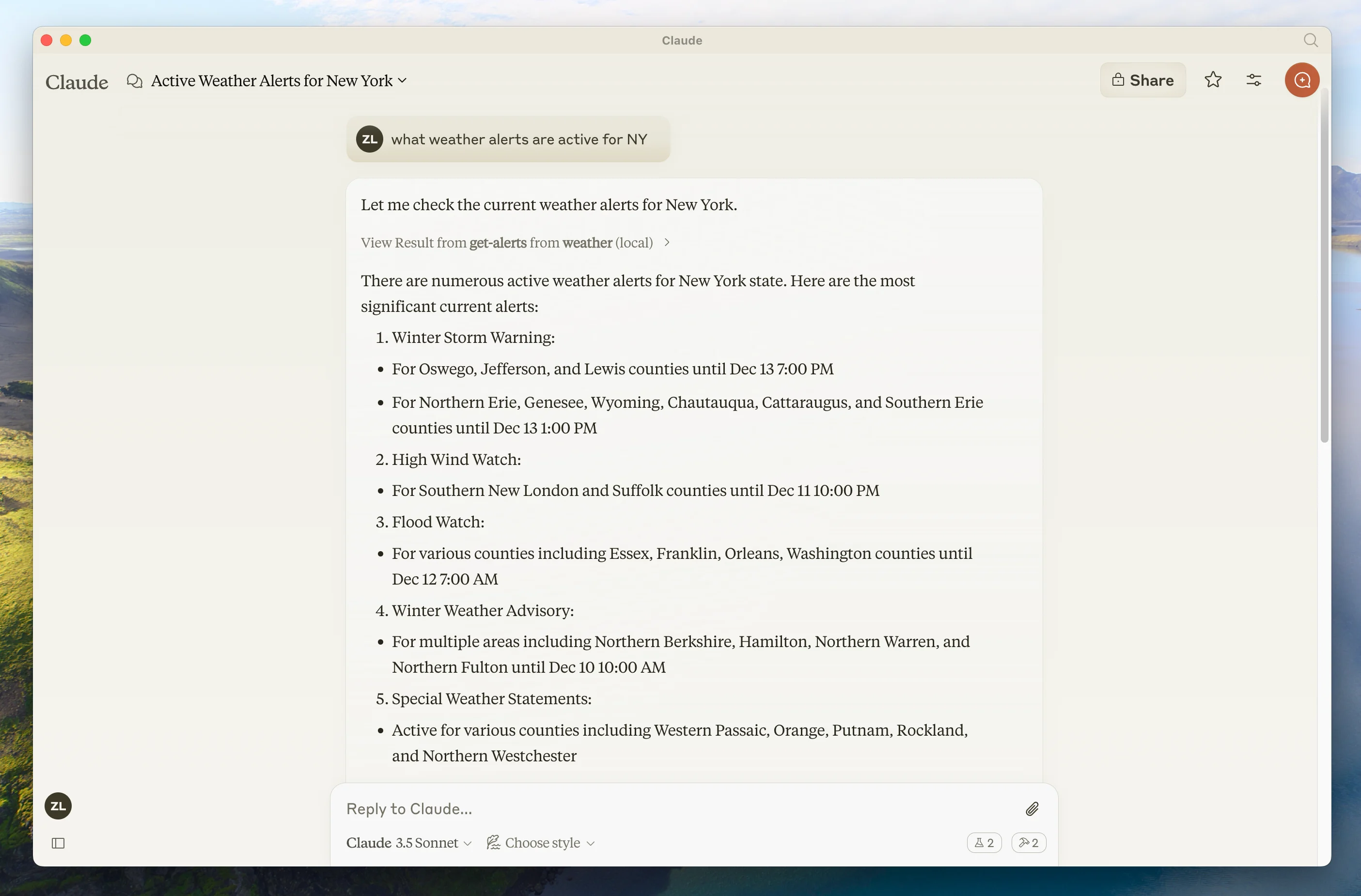
Since this is the US National Weather service, the queries will only work for US locations.
底层发生了什么
提问时:- The client sends your question to Claude
- Claude analyzes the available tools and decides which one(s) to use
- The client executes the chosen tool(s) through the MCP server
- The results are sent back to Claude
- Claude formulates a natural language response
- The response is displayed to you!
排障
Claude for Desktop Integration Issues
Claude for Desktop Integration Issues
Getting logs from Claude for DesktopClaude.app logging related to MCP is written to log files in Server not showing up in ClaudeTool calls failing silently如果 Claude 尝试使用 tools 但失败:
~/Library/Logs/Claude:mcp.logwill contain general logging about MCP connections and connection failures.- Files named
mcp-server-SERVERNAME.logwill contain error (stderr) logging from the named server.
# Check Claude's logs for errors
tail -n 20 -f ~/Library/Logs/Claude/mcp*.log
- Check your
claude_desktop_config.jsonfile syntax - Make sure the path to your project is absolute and not relative
- Restart Claude for Desktop completely
要正确重启 Claude for Desktop,必须完全退出应用:
- Windows: Right-click the Claude icon in the system tray (which may be hidden in the “hidden icons” menu) and select “Quit” or “Exit”.
- macOS: Use Cmd+Q or select “Quit Claude” from the menu bar.
- Check Claude’s logs for errors
- Verify your server builds and runs without errors
- Try restarting Claude for Desktop
Weather API Issues
Weather API Issues
Error: Failed to retrieve grid point data这通常意味着:
- The coordinates are outside the US
- The NWS API is having issues
- You’re being rate limited
- Verify you’re using US coordinates
- Add a small delay between requests
- Check the NWS API status page
如需更高级排障,请查看调试 MCP指南。
后续步骤
Building a client
Learn how to build your own MCP client that can connect to your server
Example servers
Check out our gallery of official MCP servers and implementations
Debugging Guide
Learn how to effectively debug MCP servers and integrations
Build with Agent Skills
Use agent skills to guide AI coding assistants through server design