前置条件

你需要安装 Node.js 18 或更高版本。建议熟悉 MCP toolsresources,因为 MCP Apps 会组合使用这两种原语。如果你有 MCP TypeScript SDK 使用经验,会更容易理解服务器端模式。

开始使用

创建 MCP App 最快的方式,是使用带有 MCP Apps skill 的 AI coding agent。如果你更想手动搭建项目,可以跳到手动设置

使用 AI coding agent

支持 Skills 的 AI coding agents 可以为你脚手架生成完整的 MCP App 项目。Skills 是包含指令和资源的文件夹,agent 会在相关场景下加载它们。它们会教 AI 如何执行创建 MCP Apps 等专门任务。 create-mcp-app skill 包含架构指导、最佳实践和可运行示例,agent 会用它们生成你的项目。
1

安装 skill

如果你使用 Claude Code,可以直接用以下命令安装该 skill:
/plugin marketplace add modelcontextprotocol/ext-apps
/plugin install mcp-apps@modelcontextprotocol-ext-apps
你也可以使用 Vercel Skills CLI 在不同 AI coding agents 中安装 skills:
npx skills add modelcontextprotocol/ext-apps
也可以通过克隆 ext-apps 仓库来手动安装该 skill:
git clone https://github.com/modelcontextprotocol/ext-apps.git
然后将该 skill 复制到你的 agent 对应位置:
AgentSkills 目录 (macOS/Linux)Skills 目录 (Windows)
Claude Code~/.claude/skills/%USERPROFILE%\.claude\skills\
VS Code and GitHub Copilot~/.copilot/skills/%USERPROFILE%\.copilot\skills\
Gemini CLI~/.gemini/skills/%USERPROFILE%\.gemini\skills\
Cline~/.cline/skills/%USERPROFILE%\.cline\skills\
Goose~/.config/goose/skills/%USERPROFILE%\.config\goose\skills\
Codex~/.codex/skills/%USERPROFILE%\.codex\skills\
Cursor~/.cursor/skills/%USERPROFILE%\.cursor\skills\
该列表并不完整。其他 agent 可能在不同位置支持 skills,请查看你的 agent 文档。
例如,使用 Claude Code 时,可以全局安装该 skill(所有项目都可用):
cp -r ext-apps/plugins/mcp-apps/skills/create-mcp-app ~/.claude/skills/create-mcp-app
也可以只为单个项目安装,将它复制到项目目录下的 .claude/skills/
mkdir -p .claude/skills && cp -r ext-apps/plugins/mcp-apps/skills/create-mcp-app .claude/skills/create-mcp-app
要确认 skill 已安装,可以询问 agent “What skills do you have access to?”,你应该能看到 create-mcp-app 是可用 skill 之一。
2

创建 app

让你的 AI coding agent 构建它:
创建一个显示取色器的 MCP App
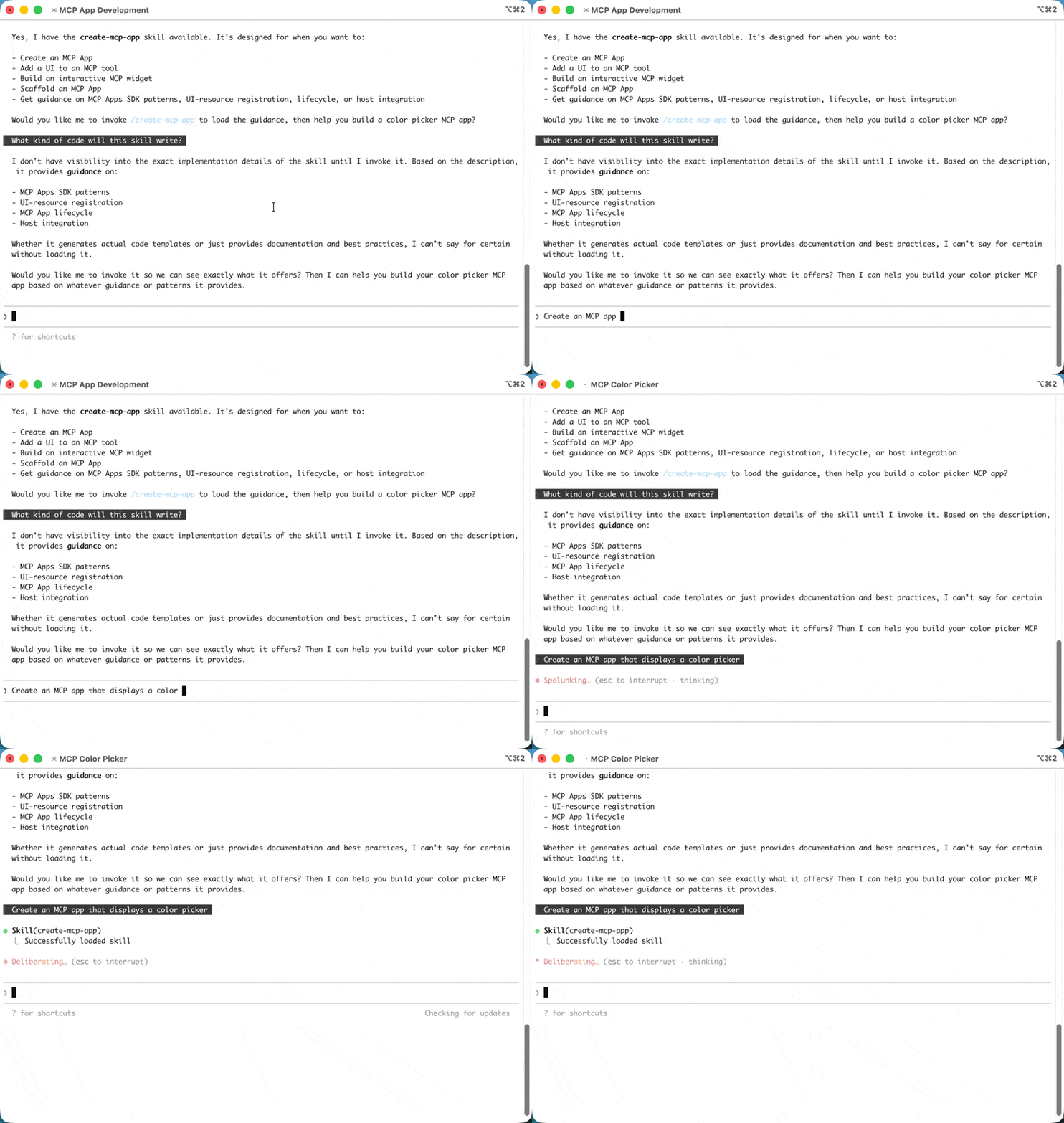
agent 会识别出 create-mcp-app skill 与任务相关,加载其中指令,然后脚手架生成包含服务器、UI 和配置文件的完整项目。
使用 Claude Code 创建新的 MCP App
3

运行 app

npm install && npm run build && npm run serve
运行上述命令前,可能需要先确认自己位于 app 文件夹中。
4

测试 app

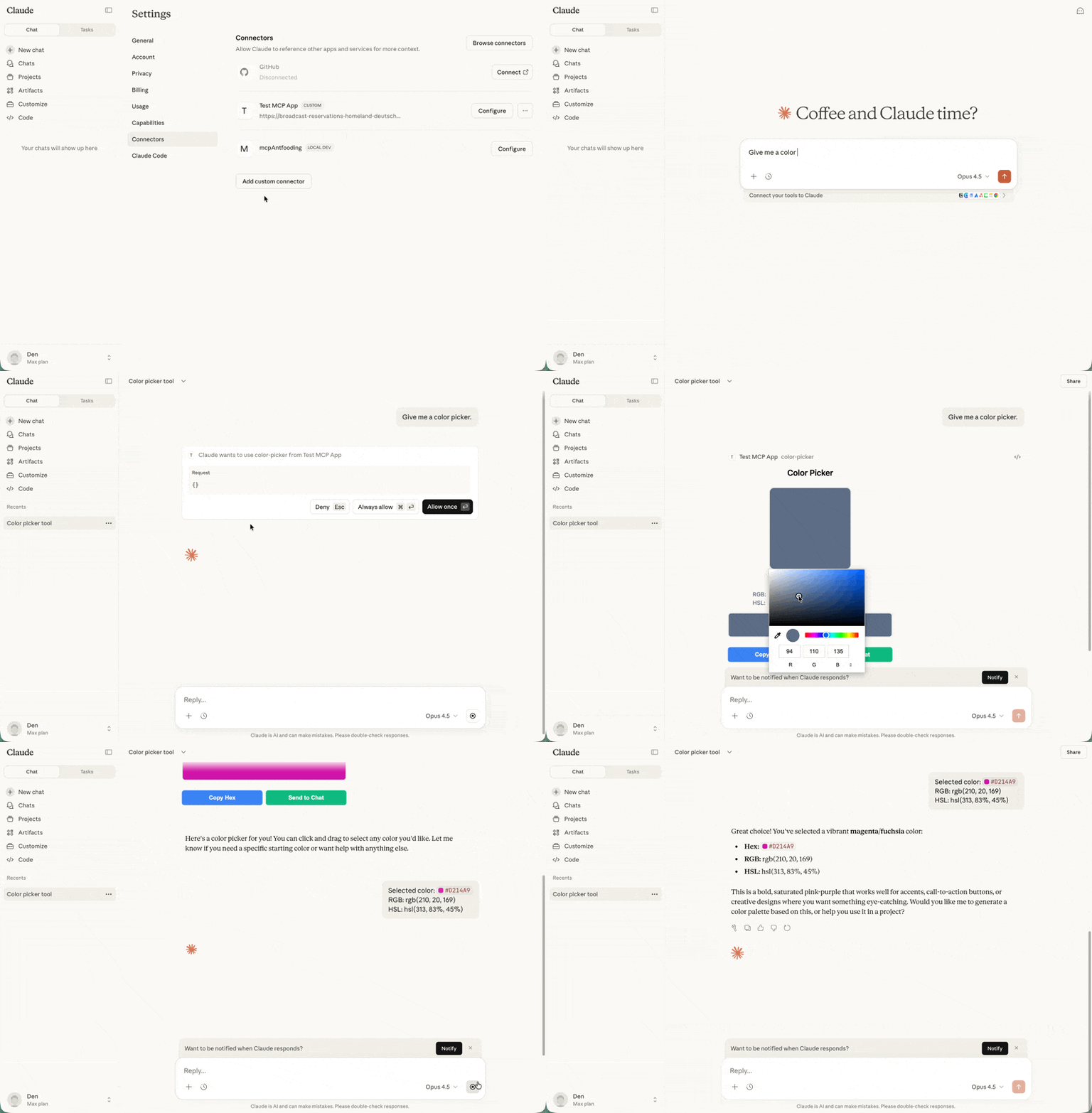
按照下方测试 app中的说明操作。对于取色器示例,可以启动一个新聊天,并让 Claude 提供一个 color picker。
在 Claude 中测试取色器

手动设置

如果你不使用 AI coding agent,或想了解设置过程,可以按以下步骤操作。
1

创建项目结构

典型 MCP App 项目会将服务器代码和 UI 代码分开:
my-mcp-app
package.json
tsconfig.json
vite.config.ts
server.ts
mcp-app.html
src
mcp-app.ts
服务器会注册 tool 并提供 UI resource。UI resource 最终会在安全 iframe 中渲染,并使用默认拒绝的 CSP 配置。如果 app 包含 CSS 和 JS 资产,需要配置 CSP,也可以使用 vite-plugin-singlefile 这样的工具将资产打包进 HTML,本教程会采用这种方式。
2

安装依赖

npm install @modelcontextprotocol/ext-apps @modelcontextprotocol/sdk
npm install -D typescript vite vite-plugin-singlefile express cors @types/express @types/cors tsx
ext-apps 包同时为服务器端(注册 tools 和 resources)与客户端(用于 UI 到 host 通信的 App 类)提供 helper。这里使用 Vite 和 vite-plugin-singlefile 插件将 UI 和资产打包成单个 HTML 文件,便于演示;但这是可选的,只要配置 CSP,你也可以使用任意 bundler,或直接提供未打包文件。
3

配置项目

"type": "module" 设置会启用 ES module 语法。build 脚本使用 INPUT 环境变量告诉 Vite 要打包哪个 HTML 文件。serve 脚本使用 tsx 运行 TypeScript 服务器。
{
  "type": "module",
  "scripts": {
    "build": "INPUT=mcp-app.html vite build",
    "serve": "npx tsx server.ts"
  }
}
4

构建项目

项目结构和配置就绪后,继续阅读下方构建 MCP App,实现服务器和 UI。

构建 MCP App

下面构建一个显示当前服务器时间的简单 app。这个示例展示了完整模式:注册带 UI 元数据的 tool,将打包后的 HTML 作为 resource 提供,并构建能与服务器通信的 UI。

服务器实现

服务器需要做两件事:注册一个包含 _meta.ui.resourceUri 字段的 tool,并注册一个 resource handler 来提供打包后的 HTML。下面是完整服务器文件:
// server.ts
console.log("Starting MCP App server...");

import { McpServer } from "@modelcontextprotocol/sdk/server/mcp.js";
import { StreamableHTTPServerTransport } from "@modelcontextprotocol/sdk/server/streamableHttp.js";
import {
  registerAppTool,
  registerAppResource,
  RESOURCE_MIME_TYPE,
} from "@modelcontextprotocol/ext-apps/server";
import cors from "cors";
import express from "express";
import fs from "node:fs/promises";
import path from "node:path";

const server = new McpServer({
  name: "My MCP App Server",
  version: "1.0.0",
});

// ui:// scheme 会告诉 hosts 这是一个 MCP App resource。
// 路径结构是任意的;按适合你的 app 的方式组织即可。
const resourceUri = "ui://get-time/mcp-app.html";

// 注册返回当前时间的 tool
registerAppTool(
  server,
  "get-time",
  {
    title: "Get Time",
    description: "Returns the current server time.",
    inputSchema: {},
    _meta: { ui: { resourceUri } },
  },
  async () => {
    const time = new Date().toISOString();
    return {
      content: [{ type: "text", text: time }],
    };
  },
);

// 注册用于提供打包后 HTML 的 resource
registerAppResource(
  server,
  resourceUri,
  resourceUri,
  { mimeType: RESOURCE_MIME_TYPE },
  async () => {
    const html = await fs.readFile(
      path.join(import.meta.dirname, "dist", "mcp-app.html"),
      "utf-8",
    );
    return {
      contents: [
        { uri: resourceUri, mimeType: RESOURCE_MIME_TYPE, text: html },
      ],
    };
  },
);

// 通过 HTTP 暴露 MCP server
const expressApp = express();
expressApp.use(cors());
expressApp.use(express.json());

expressApp.post("/mcp", async (req, res) => {
  const transport = new StreamableHTTPServerTransport({
    sessionIdGenerator: undefined,
    enableJsonResponse: true,
  });
  res.on("close", () => transport.close());
  await server.connect(transport);
  await transport.handleRequest(req, res, req.body);
});

expressApp.listen(3001, (err) => {
  if (err) {
    console.error("Error starting server:", err);
    process.exit(1);
  }
  console.log("Server listening on http://localhost:3001/mcp");
});
关键部分如下:
  • resourceUriui:// scheme 会告诉 hosts 这是一个 MCP App resource。路径结构是任意的。
  • registerAppTool:注册一个带 _meta.ui.resourceUri 字段的 tool。当 host 调用该 tool 时,会获取并渲染 UI,并在 tool 结果到达后传给 UI。
  • registerAppResource:当 host 请求 UI resource 时,提供打包后的 HTML。
  • Express server:通过端口 3001 上的 HTTP 暴露 MCP server。

UI 实现

UI 由一个 HTML 页面和一个使用 App 类与 host 通信的 TypeScript 模块组成。下面是 HTML:
<!-- mcp-app.html -->
<!DOCTYPE html>
<html lang="en">
  <head>
    <meta charset="UTF-8" />
    <title>Get Time App</title>
  </head>
  <body>
    <p>
      <strong>Server Time:</strong>
      <code id="server-time">Loading...</code>
    </p>
    <button id="get-time-btn">Get Server Time</button>
    <script type="module" src="/src/mcp-app.ts"></script>
  </body>
</html>
以及 TypeScript 模块:
// src/mcp-app.ts
import { App } from "@modelcontextprotocol/ext-apps";

const serverTimeEl = document.getElementById("server-time")!;
const getTimeBtn = document.getElementById("get-time-btn")!;

const app = new App({ name: "Get Time App", version: "1.0.0" });

// 与 host 建立通信
app.connect();

// 处理 host 推送的初始 tool 结果
app.ontoolresult = (result) => {
  const time = result.content?.find((c) => c.type === "text")?.text;
  serverTimeEl.textContent = time ?? "[ERROR]";
};

// 用户与 UI 交互时主动调用 tools
getTimeBtn.addEventListener("click", async () => {
  const result = await app.callServerTool({
    name: "get-time",
    arguments: {},
  });
  const time = result.content?.find((c) => c.type === "text")?.text;
  serverTimeEl.textContent = time ?? "[ERROR]";
});
关键部分如下:
  • app.connect():与 host 建立通信。app 初始化时调用一次。
  • app.ontoolresult:当 host 向 app 推送 tool 结果时触发的回调(例如首次调用 tool 并渲染 UI 时)。
  • app.callServerTool():让 app 主动调用服务器上的 tools。请注意,每次调用都会与服务器往返一次,因此 UI 设计应能妥善处理延迟。
App 类还提供用于记录日志、打开 URL,以及使用 app 中的结构化数据更新模型上下文的额外方法。请查看完整 API 文档

测试 app

要测试 MCP App,请构建 UI 并启动本地服务器:
npm run build && npm run serve
在默认配置下,服务器可通过 http://localhost:3001/mcp 访问。不过,要看到 app 渲染,需要使用支持 MCP Apps 的 MCP host。你有几种选择。

使用 Claude 测试

Claude (web) 和 Claude Desktop 支持 MCP Apps。对于本地开发,需要将服务器暴露到互联网。你可以在本地运行 MCP server,并使用 cloudflared 等工具通过隧道转发流量。 在另一个终端中运行:
npx cloudflared tunnel --url http://localhost:3001
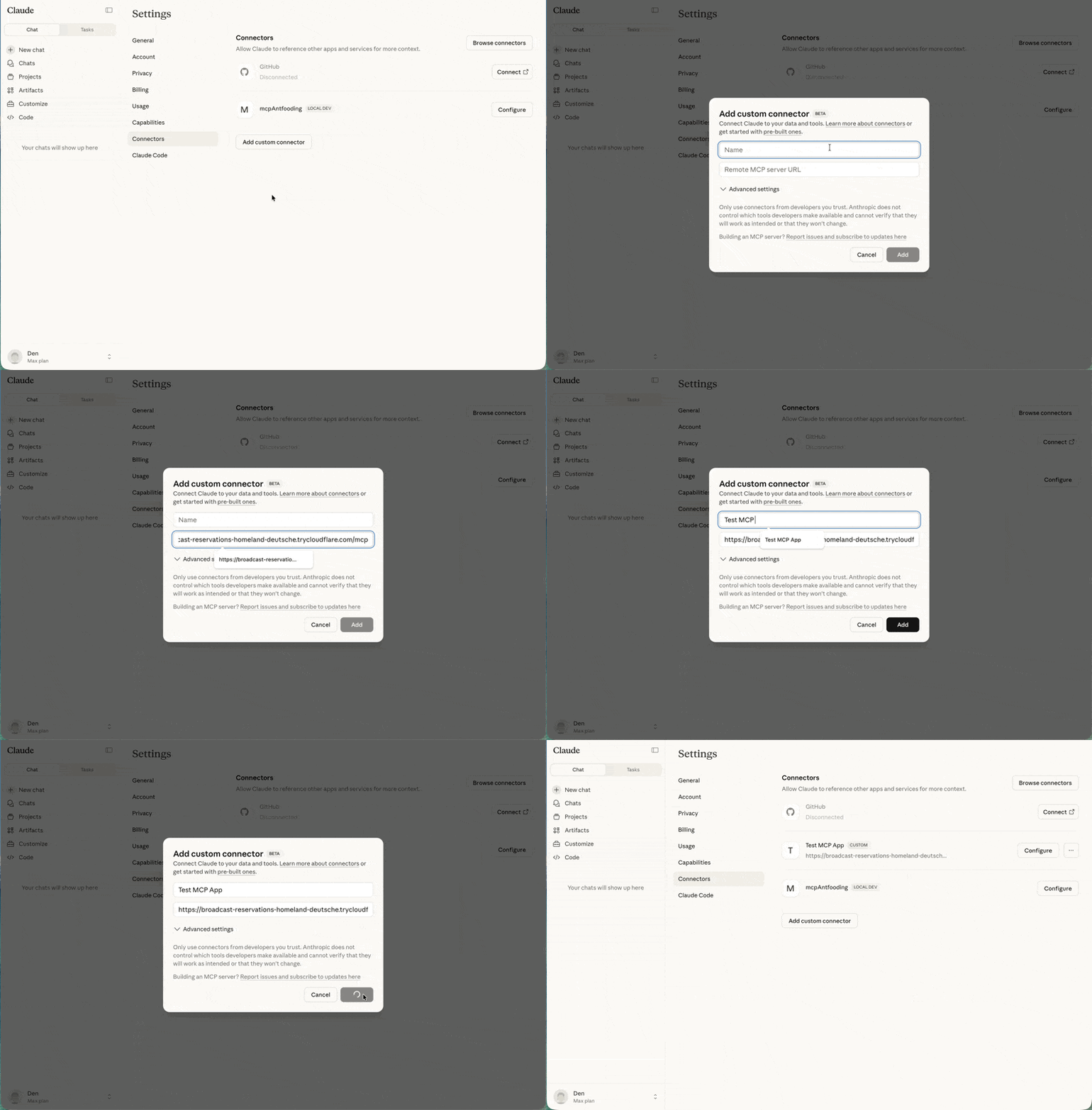
复制生成的 URL(例如 https://random-name.trycloudflare.com),并在 Claude 中将其添加为 custom connector:点击个人资料,进入 SettingsConnectors,最后点击 Add custom connector
Custom connectors 可在 Claude 付费计划(Pro、Max 或 Team)中使用。
在 Claude 中添加 custom connector

使用 basic-host 测试

ext-apps 仓库包含一个用于开发的测试 host。克隆仓库并安装依赖:
git clone https://github.com/modelcontextprotocol/ext-apps.git
cd ext-apps/examples/basic-host
npm install
ext-apps/examples/basic-host/ 中运行 npm start 会启动 basic-host 测试界面。要将它连接到特定服务器(例如你正在开发的服务器),请以内联方式传入 SERVERS 环境变量:
SERVERS='["http://localhost:3001/mcp"]' npm start
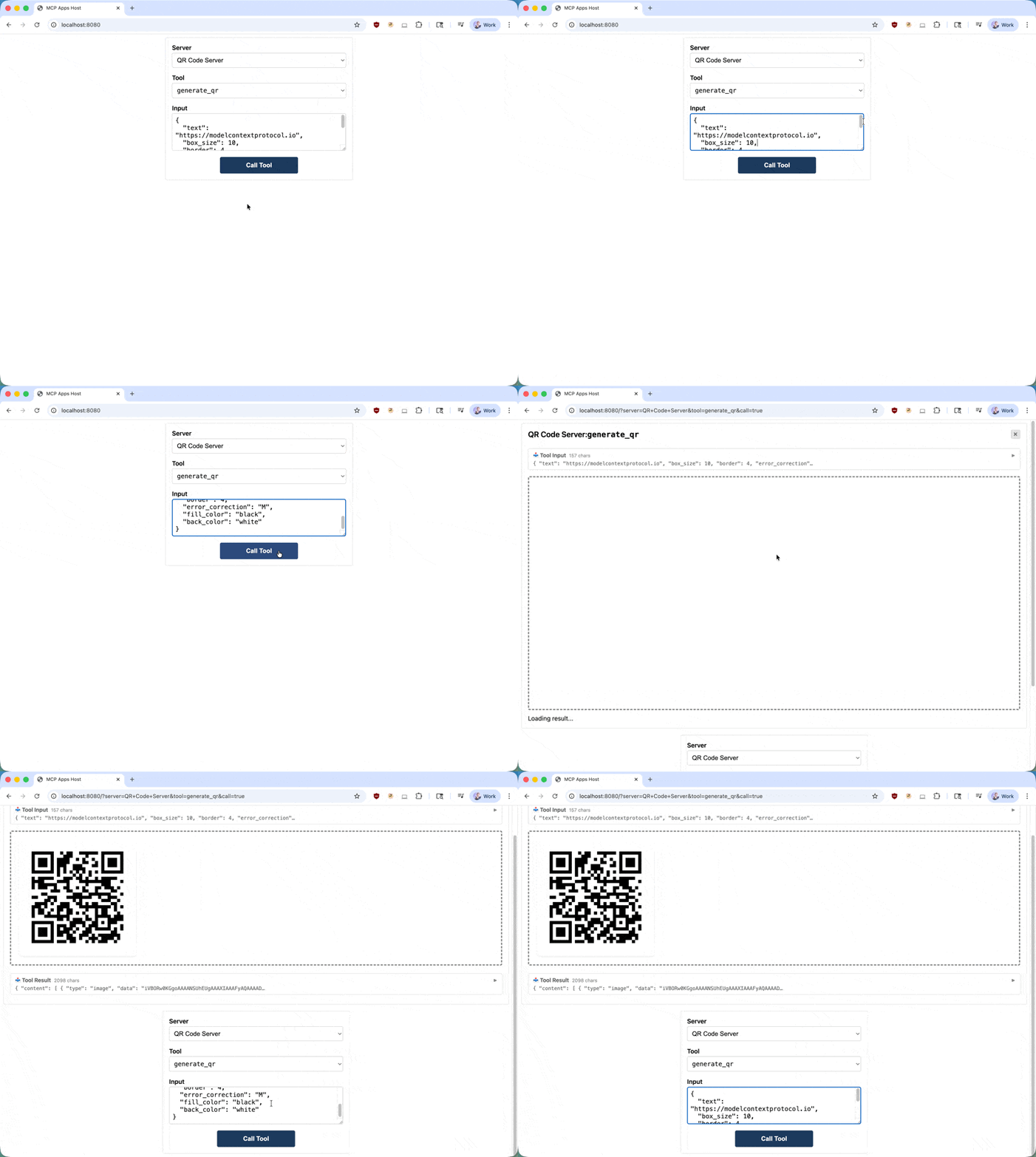
访问 http://localhost:8080。你会看到一个简单界面,可以选择 tool 并调用它。当你调用 tool 时,host 会获取 UI resource,并在沙箱 iframe 中渲染它。之后你可以与 app 交互,并验证 tool 调用是否正常工作。
二维码 MCP App 在 basic host 中运行的示例

了解更多

API 文档

完整 SDK 参考和 API 详情

GitHub 仓库

源代码、示例和 issue tracker

规范

面向实现者的技术规范

反馈

MCP Apps 正在积极开发中。如果遇到问题或有改进想法,请在 GitHub 仓库中提交 issue。关于该扩展方向的更广泛讨论,可以参与 GitHub Discussions