> ## Documentation Index
> Fetch the complete documentation index at: https://mcp.developerdoc.cn/llms.txt
> Use this file to discover all available pages before exploring further.
# 连接远程 MCP 服务器
> 了解如何将 Claude 连接到远程 MCP 服务器,并使用托管在互联网上的工具和数据源扩展能力
远程 MCP 服务器将 AI 应用的能力扩展到本地环境之外,提供对托管在互联网上的工具、服务和数据源的访问。连接远程 MCP 服务器后,AI 助手不再只是有用的工具,而可以变成具备外部资源实时访问能力、能够处理复杂多步骤项目的协作伙伴。
现在许多客户端都支持远程 MCP 服务器,从而带来广泛的集成可能性。本指南使用支持 MCP 的客户端之一 [Claude](https://claude.ai/) 作为示例,演示如何连接远程 MCP 服务器。虽然这里重点介绍 Claude 通过 Custom Connectors 的实现方式,但相关概念同样适用于其他兼容 MCP 的客户端。
## 理解远程 MCP 服务器
远程 MCP 服务器的功能与本地 MCP 服务器类似,但它们托管在互联网上,而不是你的本机。它们暴露 Claude 可用于代表你执行任务的 tools、prompts 和 resources。这些服务器可以集成多种服务,例如项目管理工具、文档系统、代码仓库,以及任何提供 API 的服务。
远程 MCP 服务器的关键优势是可访问性。本地服务器需要在每台设备上安装和配置,而远程服务器可以被任何具备互联网连接的 MCP client 使用。这让它们非常适合基于 Web 的 AI 应用、强调易用性的集成,以及需要服务器端处理或认证的服务。
## 什么是 Custom Connectors?
Custom Connectors 是 Claude 与远程 MCP 服务器之间的桥梁。它们允许你把 Claude 直接连接到对工作流最重要的工具和数据源,让 Claude 可以在你常用的软件中工作,并从外部工具的完整上下文中获取洞察。
借助 Custom Connectors,你可以:
* [将 Claude 连接到第三方开发者提供的现有远程 MCP 服务器](https://support.anthropic.com/en/articles/11175166-getting-started-with-custom-connectors-using-remote-mcp)
* [构建你自己的远程 MCP 服务器,以连接任何工具](https://support.anthropic.com/en/articles/11503834-building-custom-connectors-via-remote-mcp-servers)
## 连接远程 MCP 服务器
将 Claude 连接到远程 MCP 服务器,需要通过 [Claude 界面](https://claude.ai/)添加 Custom Connector。这样会在 Claude 与你选择的远程服务器之间建立安全连接。
在浏览器中打开 Claude 并进入设置页面。你可以点击个人资料图标,然后从下拉菜单中选择 “Settings”。进入设置后,在侧边栏找到并点击 “Connectors”。
这里会显示当前已配置的 connectors,并提供添加新 connector 的选项。
在 Connectors 区域滚动到底部,你会看到 “Add custom connector” 按钮。点击该按钮开始连接流程。
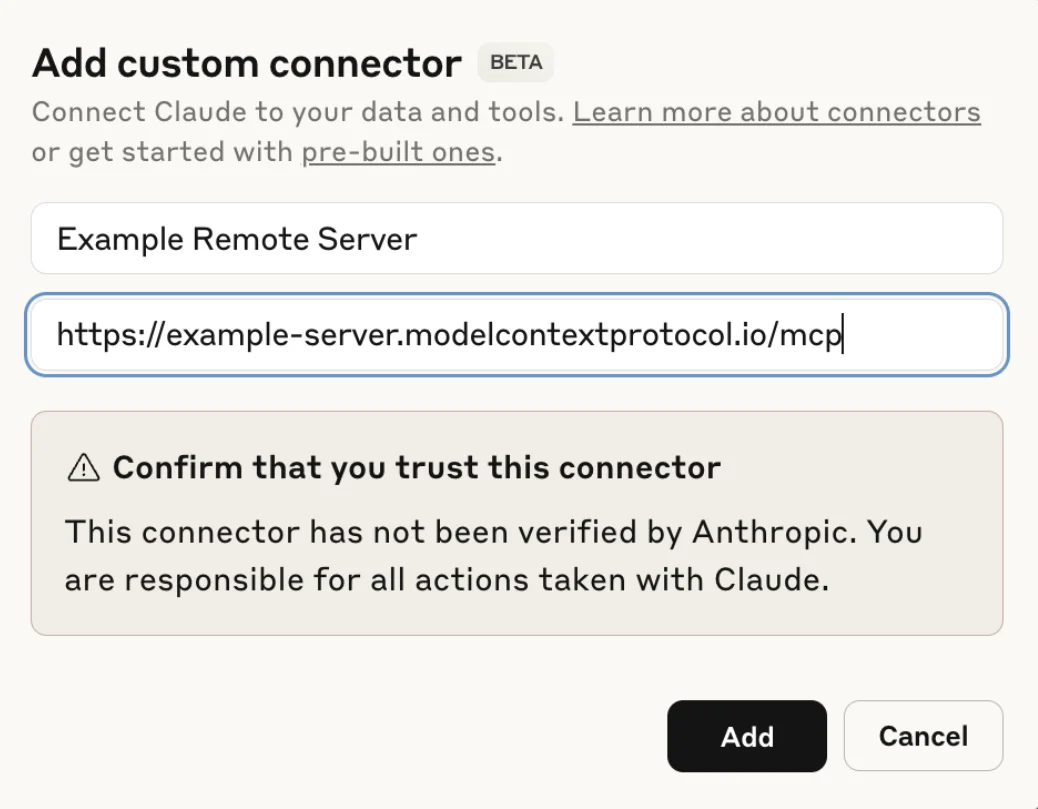 随后会出现一个对话框,提示你输入远程 MCP 服务器 URL。这个 URL 应由服务器开发者或管理员提供。请输入完整 URL,并确保它包含正确协议(`https://`)以及任何必要的路径组件。
 输入 URL 后,点击 “Add” 继续连接。
大多数远程 MCP 服务器都需要认证,以确保对资源的安全访问。认证流程取决于服务器实现,但通常包括 OAuth、API key 或用户名/密码组合。
输入 URL 后,点击 “Add” 继续连接。
大多数远程 MCP 服务器都需要认证,以确保对资源的安全访问。认证流程取决于服务器实现,但通常包括 OAuth、API key 或用户名/密码组合。
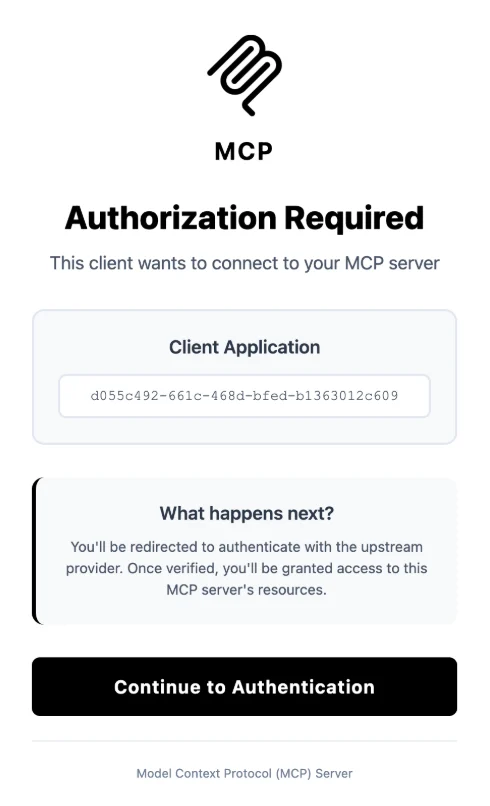 按照服务器提供的认证提示操作。这可能会将你重定向到第三方认证提供商,也可能在 Claude 内显示表单。认证完成后,Claude 会与远程服务器建立安全连接。
连接成功后,远程服务器的 resources 和 prompts 会在 Claude 对话中可用。你可以点击消息输入区域中的回形针图标打开附件菜单来访问它们。
按照服务器提供的认证提示操作。这可能会将你重定向到第三方认证提供商,也可能在 Claude 内显示表单。认证完成后,Claude 会与远程服务器建立安全连接。
连接成功后,远程服务器的 resources 和 prompts 会在 Claude 对话中可用。你可以点击消息输入区域中的回形针图标打开附件菜单来访问它们。
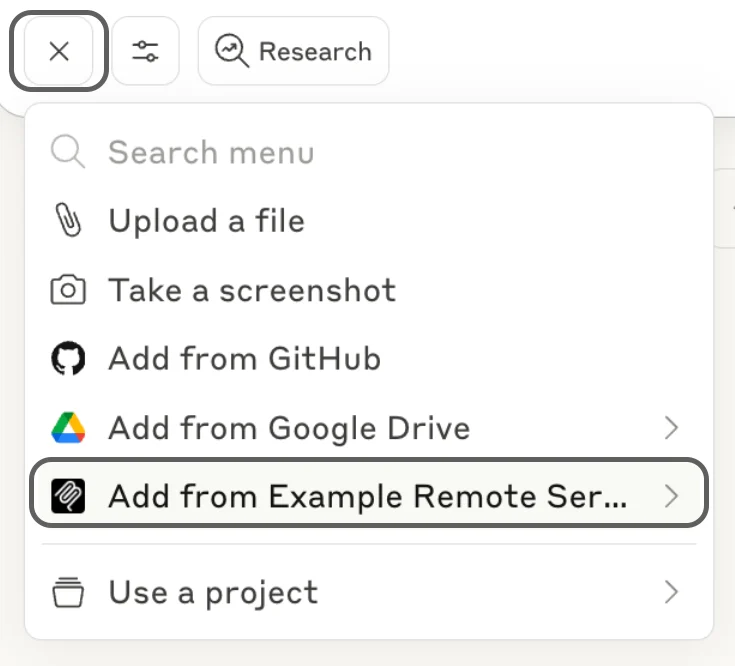 菜单会显示已连接服务器提供的所有可用 resources 和 prompts。选择你想加入对话的项目。这些 resources 会为 Claude 提供来自外部工具的上下文和信息。
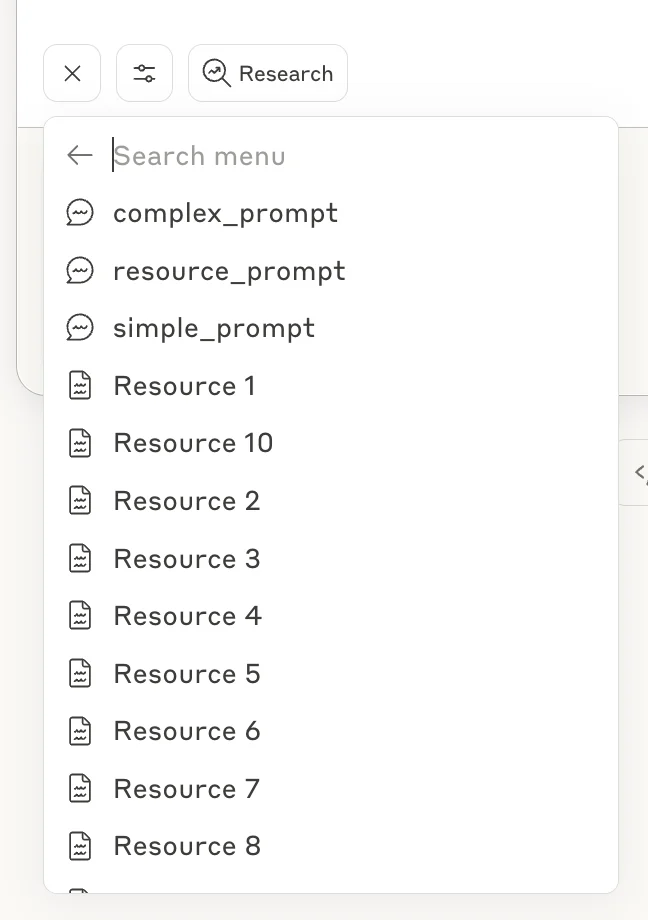 远程 MCP 服务器通常会暴露多个能力不同的 tools。你可以在 connector 设置中配置权限,控制 Claude 可以使用哪些 tools。这可以确保 Claude 只执行你明确授权的操作。
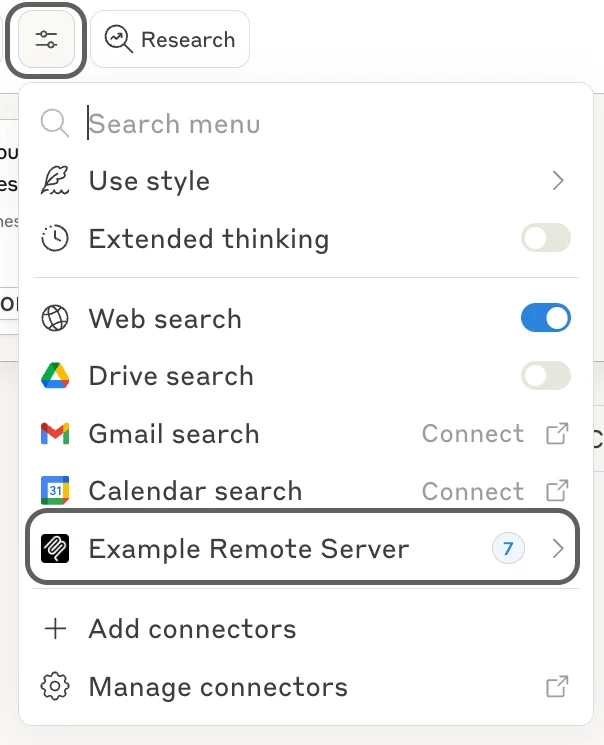 回到 Connectors 设置并点击已连接的服务器。在这里,你可以根据需要启用或禁用特定 tools、设置使用限制,并配置其他安全参数。
## 使用远程 MCP 服务器的最佳实践
使用远程 MCP 服务器时,可以参考以下建议以获得安全、高效的体验:
**安全注意事项**:连接前务必验证远程 MCP 服务器的真实性。只连接来自可信来源的服务器,并审查认证过程中请求的权限。授予敏感数据或系统访问权限时要谨慎。
**管理多个 connectors**:你可以同时连接多个远程 MCP 服务器。建议按用途或项目组织 connectors,以保持清晰。定期审查并移除不再使用的 connectors,让工作区保持整洁和安全。
## 后续步骤
现在你已经将 Claude 连接到远程 MCP 服务器,可以在对话中探索它的能力。尝试使用已连接的 tools 自动化任务、访问外部数据,或与你现有的工作流集成。
创建自定义远程 MCP 服务器,以集成专有工具和服务
浏览官方和社区创建的 MCP 服务器集合
了解如何将 Claude Desktop 连接到本地 MCP 服务器,以直接访问系统
深入了解 MCP 的工作方式和架构
远程 MCP 服务器为扩展 Claude 能力开启了强大可能性。随着你熟悉这些集成,会发现更多简化工作流、提高复杂任务完成效率的方法。
回到 Connectors 设置并点击已连接的服务器。在这里,你可以根据需要启用或禁用特定 tools、设置使用限制,并配置其他安全参数。
## 使用远程 MCP 服务器的最佳实践
使用远程 MCP 服务器时,可以参考以下建议以获得安全、高效的体验:
**安全注意事项**:连接前务必验证远程 MCP 服务器的真实性。只连接来自可信来源的服务器,并审查认证过程中请求的权限。授予敏感数据或系统访问权限时要谨慎。
**管理多个 connectors**:你可以同时连接多个远程 MCP 服务器。建议按用途或项目组织 connectors,以保持清晰。定期审查并移除不再使用的 connectors,让工作区保持整洁和安全。
## 后续步骤
现在你已经将 Claude 连接到远程 MCP 服务器,可以在对话中探索它的能力。尝试使用已连接的 tools 自动化任务、访问外部数据,或与你现有的工作流集成。
创建自定义远程 MCP 服务器,以集成专有工具和服务
浏览官方和社区创建的 MCP 服务器集合
了解如何将 Claude Desktop 连接到本地 MCP 服务器,以直接访问系统
深入了解 MCP 的工作方式和架构
远程 MCP 服务器为扩展 Claude 能力开启了强大可能性。随着你熟悉这些集成,会发现更多简化工作流、提高复杂任务完成效率的方法。